Lab5: Person Tracking with YOLO and ROS2
Introduction
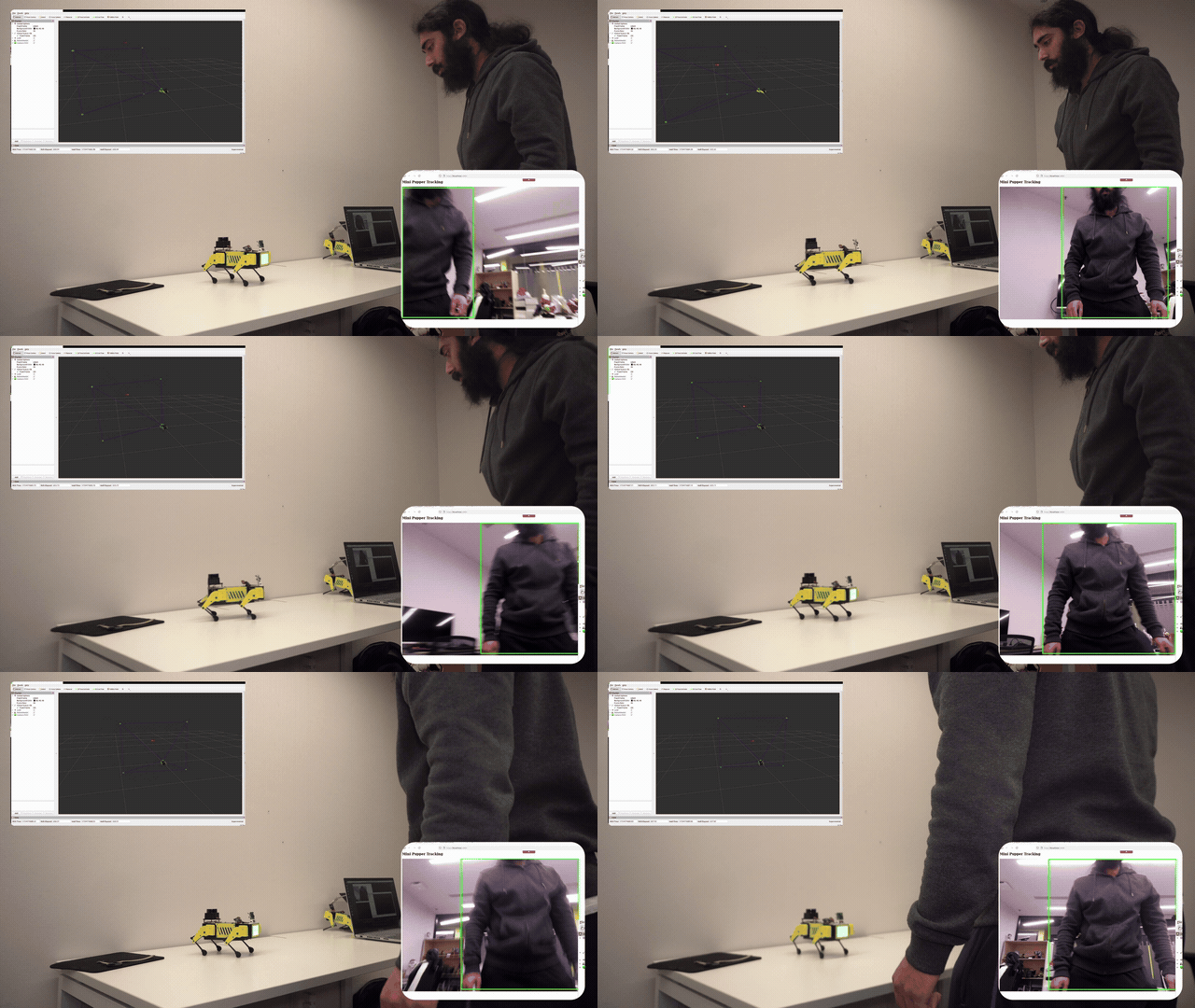
In this lab, you will set up and run the Mini Pupper tracking system that uses YOLO11n for real-time person detection and tracking. The robot will follow detected people by adjusting its head orientation using PID control with IMU feedback.
Features
- YOLO11n object detection on live camera feed
- Real-time tracking with unique temporary IDs per person
- IMU-based PID control for yaw correction and smooth pitch tracking
- Flask web interface for monitoring camera and tracking overlays
- RViz visualization for 3D spatial awareness of detections
Prerequisites
- Mini Pupper with ROS2 Humble installed
- Camera enabled (see Lab2)
- Completed Lab3 (Bringup and Motion Control)
- Completed Lab4 (WSL ROS2 Setup)
- Stanford Controller (CHAMP Controller is not supported)
Hardware Requirements
- Raspberry Pi Camera Module (v2 recommended)
- Camera must be enabled in
mini_pupper_2.yaml(camera: true)
Part 1: Install Dependencies
Python Dependencies
# Downgrade numpy to a compatible version
pip install "numpy<2.0"

# Install required packages
pip install flask onnxruntime motpy
ROS2 Dependencies
sudo apt install ros-humble-imu-filter-madgwick ros-humble-tf-transformations
Part 2: Download YOLO Model
The tracking system uses YOLO11n for person detection. Download the pre-trained model:
# Download the PyTorch model
wget https://github.com/ultralytics/assets/releases/download/v8.3.0/yolo11n.pt
Export to ONNX Format (Optional)
If you need to export the model yourself:
# Set up virtual environment
python3 -m venv yolo-env
source yolo-env/bin/activate

# Install Ultralytics
pip install ultralytics

# Export to ONNX with 320x320 input size
yolo export model=yolo11n.pt format=onnx imgsz=320
Move Model to Package Directory
mkdir -p ~/ros2_ws/src/mini_pupper_ros/mini_pupper_tracking/models/
mv yolo11n.onnx ~/ros2_ws/src/mini_pupper_ros/mini_pupper_tracking/models/
Part 3: Build the Package
cd ~/ros2_ws
colcon build --packages-select mini_pupper_tracking
source install/setup.bash
Part 4: Running the Tracking System
Step 1: Launch Bringup on Mini Pupper
SSH into your Mini Pupper and run:
source ~/ros2_ws/install/setup.bash
# Use setup.zsh if you use zsh instead of bash

ros2 launch mini_pupper_bringup bringup_with_stanford_controller.launch.py
This launches the Stanford Controller which is required for the tracking system.
Step 2: Launch Tracking (on Host PC or Mini Pupper)
In a new terminal:
source ~/ros2_ws/install/setup.bash
ros2 launch mini_pupper_tracking tracking.launch.py
The web interface will automatically open at http://localhost:5000.
Step 3: Launch RViz Visualization (Optional)
In another terminal:
source ~/ros2_ws/install/setup.bash
ros2 launch mini_pupper_description stanford_visualisation.launch.py
Part 5: Web Interface
The Flask web interface shows:
- Live camera feed
- Detected individuals with bounding boxes
- Assigned temporary UUIDs for tracking
Access it at: http://<robot-ip>:5000

Part 6: Configuration
Configuration files are located in config/ directory:
Movement Parameters (movement_params.yaml)
yaw:
  tracking_enabled: true    # Enable horizontal tracking
  Kp: 5.0                   # PID proportional gain

pitch:
  tracking_enabled: false   # Enable vertical tracking
Tracking Parameters (tracking_params.yaml)
yolo:
  confidence_threshold: 0.7  # Detection confidence
  image_size: 320            # YOLO input resolution

flask:
  auto_open_browser: true    # Auto-open browser on launch
  frame_rate: 15             # Streaming frame rate (FPS)
Part 7: System Architecture
Package Components
| Component | File | Description |
|---|---|---|
| Detection & Tracking | main.py, tracking_node.py | YOLO11n detection with motpy tracking |
| Movement Control | movement_node.py | PID-based yaw/pitch control |
| Visualization | camera_visualisation_node.py | RViz markers for FOV and positions |
| Web Interface | flask_server.py | Real-time video streaming |
ROS2 Topics
Published:
/tracking_array- Person detection results with tracking IDs/robot_command- Stanford Controller command messages/camera_fov- RViz visualization markers
Subscribed:
/image_raw- Camera feed input/imu/data_filtered_madgwick- Filtered IMU orientation data
Architecture Diagram
┌─────────────────────────────────────────────────────────────────┐
│                        Mini Pupper                              │
│                                                                 │
│  ┌──────────────┐    ┌──────────────┐    ┌──────────────────┐  │
│  │   Camera     │───►│  /image_raw  │───►│  YOLO Detection  │  │
│  └──────────────┘    └──────────────┘    └────────┬─────────┘  │
│                                                    │            │
│  ┌──────────────┐    ┌──────────────┐    ┌────────▼─────────┐  │
│  │     IMU      │───►│  /imu/data   │───►│  Movement Node   │  │
│  └──────────────┘    └──────────────┘    │  (PID Control)   │  │
│                                          └────────┬─────────┘  │
│                                                    │            │
│                                          ┌────────▼─────────┐  │
│                                          │ /robot_command   │  │
│                                          │ Stanford Ctrl    │  │
│                                          └──────────────────┘  │
└─────────────────────────────────────────────────────────────────┘
Part 8: Testing
Run unit tests:
python3 -m pytest ~/ros2_ws/src/mini_pupper_ros/mini_pupper_tracking/test/ -v
Exercises
Exercise 1: Adjust Tracking Sensitivity
Modify the PID gains in movement_params.yaml to make the robot track faster or smoother:
- Increase
Kpfor faster response - Decrease
Kpfor smoother movement
Exercise 2: Enable Pitch Tracking
Enable vertical tracking to make the robot look up/down:
pitch:
  tracking_enabled: true
Exercise 3: Change Detection Confidence
Adjust the confidence threshold to detect more or fewer people:
yolo:
  confidence_threshold: 0.5  # Lower = more detections
Exercise 4: Track Different Objects
Modify the tracking node to detect and track different COCO classes (e.g., cats, dogs, balls).
Safety Notes
- Always test in a safe, open environment
- Keep emergency stop (Ctrl+C) readily available
- Start with tracking disabled and gradually enable features
- Monitor robot behavior through web interface
- Ensure adequate lighting for camera detection
Troubleshooting
| Issue | Solution |
|---|---|
| No detections | Check camera is working, ensure good lighting |
| Robot not moving | Verify Stanford Controller is running |
| Model not found | Check ONNX file is in models/ directory |
| Web interface not loading | Check Flask is installed, verify port 5000 |
| Jerky movements | Reduce Kp gain in movement_params.yaml |
Debugging Commands
# Check if tracking topics are active
ros2 topic list | grep tracking

# Monitor detection results
ros2 topic echo /tracking_array

# Check IMU data
ros2 topic echo /imu/data_filtered_madgwick
Summary
In this lab, you learned:
- How to set up YOLO11n for person detection
- How to run the Mini Pupper tracking system
- How to use the Stanford Controller for tracking
- How to configure tracking parameters
- How to visualize tracking in RViz and web interface