Lab2: LCD Display Control
Introduction
In this lab, you will learn how to control the Mini Pupper’s LCD display using Python. The LCD display can show images, text, IP addresses, and various robot states. This is useful for providing visual feedback about the robot’s status without needing an external monitor.
Prerequisites
The Mini Pupper BSP (Board Support Package) should be installed on your Raspberry Pi. The display libraries are part of the MangDang package.
Example Output
Here is an example of the LCD display showing custom content:
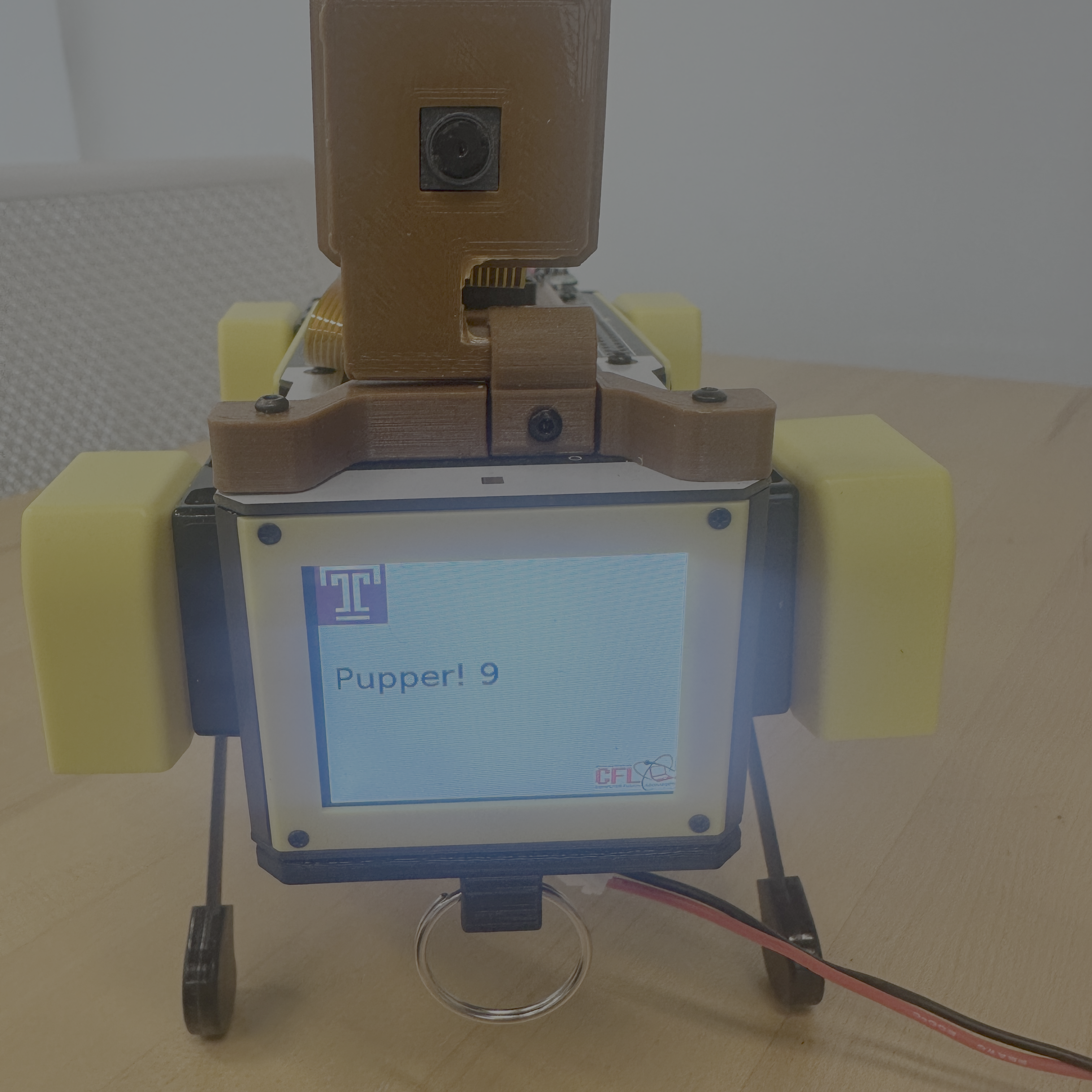
Method 1: Using the Display Class
The Display class provides high-level methods for common display operations.
from MangDang.mini_pupper.display import Display
from MangDang.mini_pupper.display import BehaviorState
import time

disp = Display()

# Show the current IP address
disp.show_ip()
time.sleep(2)

# Show a custom image
disp.show_image('/var/lib/mini_pupper_bsp/test.png')
time.sleep(2)

# Show different robot states
disp.show_state(BehaviorState.REST)
time.sleep(2)

disp.show_state(BehaviorState.TROT)
time.sleep(2)

disp.show_state(BehaviorState.LOWBATTERY)
Available Behavior States
| State | Description |
|---|---|
BehaviorState.REST | Robot is in rest mode |
BehaviorState.TROT | Robot is trotting |
BehaviorState.LOWBATTERY | Low battery warning |
Method 2: Direct LCD Control with ST7789
For more control over the display, you can use the ST7789 driver directly with PIL (Python Imaging Library).
from PIL import Image, ImageDraw, ImageFont
from MangDang.LCD.ST7789 import ST7789
import time

disp = ST7789()

# Load background image once
background = Image.open('/var/lib/mini_pupper_bsp/temple.png').resize((320, 240))
font = ImageFont.truetype('/usr/share/fonts/truetype/dejavu/DejaVuSans.ttf', 30)

for i in range(0, 10):
    # Make a copy of the background image (so previous text doesn't persist)
    try:
        image = background.copy()
        draw = ImageDraw.Draw(image)

        hello_text = f"Pupper! {i}"
        draw.text((10, 95), hello_text, font=font, fill="#000000")

        disp.begin()
        disp.display(image)
    except Exception as e:
        print(f'DISPLAY DEBUG: failed to push sample image: {e}')
    time.sleep(0.5)
Code Breakdown
1. Import Libraries
from PIL import Image, ImageDraw, ImageFont
from MangDang.LCD.ST7789 import ST7789
PIL: Python Imaging Library for image manipulationST7789: Driver for the LCD display chip
2. Initialize Display
disp = ST7789()
Creates an instance of the display driver.
3. Load and Prepare Images
background = Image.open('/var/lib/mini_pupper_bsp/temple.png').resize((320, 240))
font = ImageFont.truetype('/usr/share/fonts/truetype/dejavu/DejaVuSans.ttf', 30)
- Load a background image and resize to display dimensions (320x240)
- Load a TrueType font for text rendering
4. Draw Text on Image
image = background.copy()
draw = ImageDraw.Draw(image)
draw.text((10, 95), hello_text, font=font, fill="#000000")
- Copy the background to preserve the original
- Create a drawing context
- Draw text at position (10, 95) with black color
5. Display the Image
disp.begin()
disp.display(image)
- Initialize the display
- Push the image to the LCD
Exercises
Exercise 1: Custom Status Display
Create a function that displays the robot’s battery level as a progress bar on the LCD.
Exercise 2: Animated Display
Create a simple animation by cycling through multiple images.
Exercise 3: Real-time Information
Display real-time sensor data (like temperature or CPU usage) on the LCD.
Hint: Use psutil library to get system information:
import psutil
cpu_percent = psutil.cpu_percent()
Troubleshooting
| Issue | Solution |
|---|---|
| Display not working | Check SPI is enabled in raspi-config |
| Image not showing | Verify image path exists and format is supported |
| Font error | Install DejaVu fonts or use a different font path |
Summary
In this lab, you learned:
- How to use the high-level Display class for common operations
- How to directly control the ST7789 LCD with PIL
- How to draw text and images on the display
- How to create dynamic display content