Lab2: ROS2 Camera Image Publishing and Web Viewer
Introduction
In this lab, you will learn how to publish camera images as ROS2 topics and view them through a web interface. This is essential for robotics applications where you need to monitor the robot’s camera feed remotely.
Prerequisites
- Mini Pupper with ROS2 installed
- Camera connected to Mini Pupper
- Completed Lab1 (ROS2 Publish/Subscribe basics)
Part 1: Camera Launch File
The Mini Pupper ROS2 driver includes a camera launch file that uses the v4l2_camera package to capture and publish camera images.
Enable Camera in Configuration
First, enable the camera in the Mini Pupper configuration file. Edit ~/ros2_ws/src/mini_pupper_ros_aws/mini_pupper_bringup/config/mini_pupper_2.yaml:
sensors:
  lidar: true
  imu: true
  camera: true   # Change from false to true
ports:
  lidar: '/dev/ttyAMA1'
Camera Launch File
The camera launch file (camera.launch.py) from the Mini Pupper ROS driver:
#!/usr/bin/env python3

from launch.substitutions import LaunchConfiguration
from launch.actions import DeclareLaunchArgument
from launch import LaunchDescription
from launch_ros.actions import Node


def generate_launch_description():
    output_encoding = LaunchConfiguration('output_encoding')

    return LaunchDescription([
        DeclareLaunchArgument(
            'output_encoding',
            default_value='yuv422_yuy2',
            description='Output encoding for the camera'
        ),
        Node(
            package='v4l2_camera',
            executable='v4l2_camera_node',
            name='v4l2_camera',
            output='screen',
            parameters=[
                {
                    'output_encoding': output_encoding,
                    'image_size': [320, 240],
                    'frame_rate': 10,
                }],
        ),
    ])
The camera is configured with:
image_size: 320x240 resolution (lower resolution for better performance)frame_rate: 10 FPS (suitable for Mini Pupper’s processing capabilities)
Install v4l2_camera Package
sudo apt install ros-humble-v4l2-camera
Launch the Camera
ros2 launch mini_pupper_driver camera.launch.py
This publishes camera images to the /image_raw topic.
Verify Camera Topic
ros2 topic list | grep image
ros2 topic info /image_raw
Part 2: Web Interface for Camera Viewing
The mini_pupper_webcam package provides a Flask-based web interface to view ROS2 image streams from any browser.
Installation
Install Dependencies
# ROS2 dependencies
sudo apt install ros-humble-cv-bridge ros-humble-sensor-msgs

# Python dependencies
pip3 install flask opencv-python
Clone the Package
cd ~/ros2_ws/src
git clone -b stanford_control https://github.com/lbaitemple/mini_pupper_ros_aws.git
Build the Package
cd ~/ros2_ws
colcon build --packages-select mini_pupper_webcam
source install/setup.bash
Part 3: Running the Web Viewer
Single Camera Viewer
View a single image topic through your web browser:
Basic Usage
# Default: subscribes to /image_raw, serves on port 5000
ros2 launch mini_pupper_webcam single_viewer.launch.py
Custom Configuration
ros2 launch mini_pupper_webcam single_viewer.launch.py \
    topic_name:=/image_raw \
    port:=5000 \
    frame_rate:=15 \
    image_display_size:=640
Available Parameters
| Parameter | Default | Description |
|---|---|---|
topic_name | /image_raw | Image topic to subscribe to |
port | 5000 | Flask server port |
frame_rate | 15 | Video stream frame rate |
image_display_size | 640 | Image display width in pixels |
Multi Camera Viewer
View multiple image topics simultaneously in a grid layout:
# Default topics
ros2 launch mini_pupper_webcam multi_viewer.launch.py

# Custom topics (comma-separated)
ros2 launch mini_pupper_webcam multi_viewer.launch.py \
    topics:="/cam1/image_raw,/cam2/image_raw" \
    port:=5001
Part 4: Accessing the Web Interface
Local Access
Open your web browser and navigate to:
- Single Viewer:
http://localhost:5000 - Multi Viewer:
http://localhost:5001
Network Access (Remote Viewing)
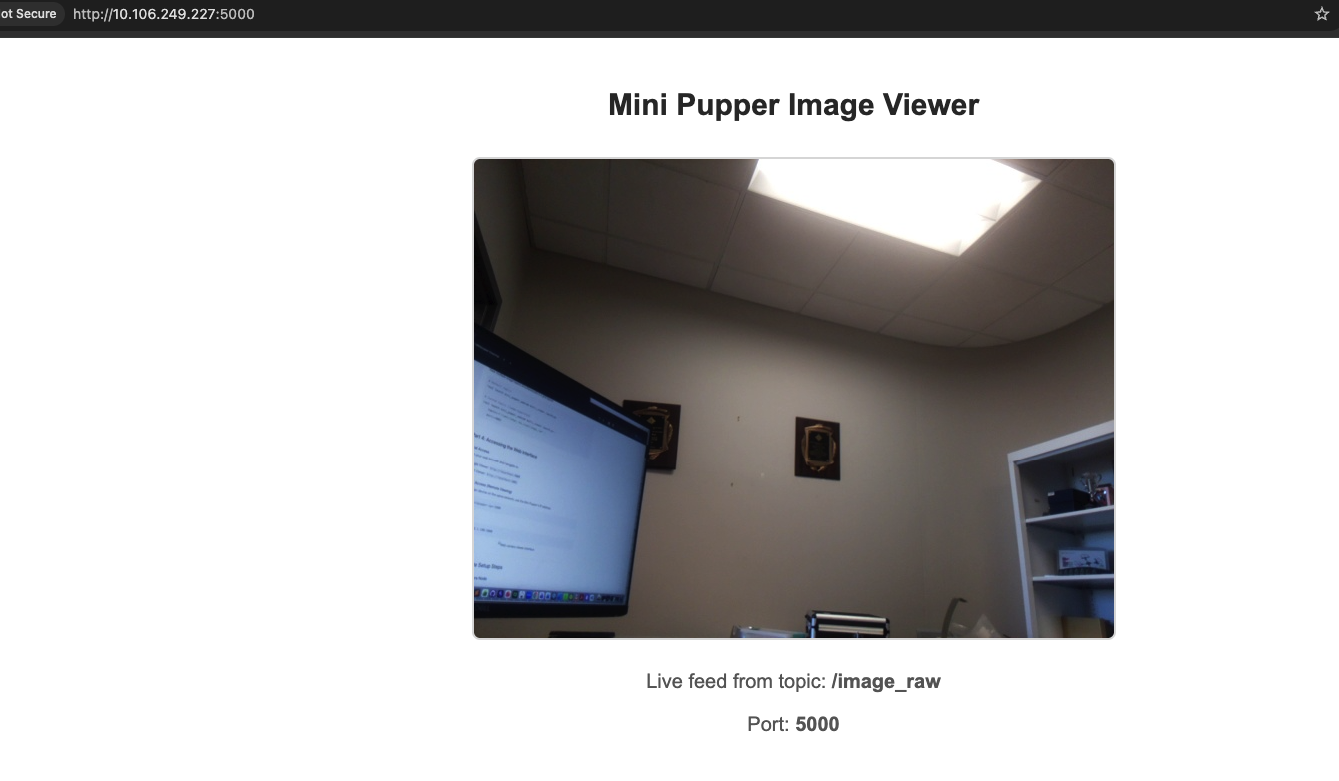
From another device on the same network, use the Mini Pupper’s IP address:
http://<minipupper-ip>:5000
For example:
http://192.168.1.100:5000
Part 5: Complete Setup Steps
Step 1: Start the Camera Node
In Terminal 1:
source ~/ros2_ws/install/setup.bash
ros2 launch mini_pupper_driver camera.launch.py
Step 2: Start the Web Viewer
In Terminal 2:
source ~/ros2_ws/install/setup.bash
ros2 launch mini_pupper_webcam single_viewer.launch.py
Step 3: Open Browser
On your computer, open a browser and go to:
http://<minipupper-ip>:5000
Part 6: Running Nodes Directly
You can also run the viewer nodes directly without launch files:
Single Viewer Node
ros2 run mini_pupper_webcam image_viewer_node \
    --ros-args \
    -p topic_name:=/image_raw \
    -p port:=5000
Multi Viewer Node
ros2 run mini_pupper_webcam multi_image_viewer \
    --ros-args \
    -p topics:="/cam1/image_raw,/cam2/image_raw" \
    -p port:=5001
Part 7: Configuration File
The package includes a configuration file at config/viewer_config.yaml:
# Single viewer configuration
single_viewer:
  topic_name: "/image_raw"
  port: 5000
  frame_rate: 15
  image_display_size: 640

# Multi viewer configuration
multi_viewer:
  topics: ["/image_raw", "/camera/image_raw", "/front_camera/image_raw"]
  port: 5001
  frame_rate: 15
Architecture Diagram
┌─────────────────────────────────────────────────────────────────┐
│                        Mini Pupper                              │
│                                                                 │
│  ┌──────────────┐    ┌──────────────┐    ┌──────────────────┐  │
│  │   Camera     │───►│ v4l2_camera  │───►│  /image_raw      │  │
│  │  (Hardware)  │    │    Node      │    │    Topic         │  │
│  └──────────────┘    └──────────────┘    └────────┬─────────┘  │
│                                                    │            │
│                                          ┌────────▼─────────┐  │
│                                          │  image_viewer    │  │
│                                          │     Node         │  │
│                                          │  (Flask Server)  │  │
│                                          └────────┬─────────┘  │
│                                                    │            │
└────────────────────────────────────────────────────┼────────────┘
                                                     │
                                              Port 5000
                                                     │
                                          ┌──────────▼──────────┐
                                          │    Web Browser      │
                                          │  http://ip:5000     │
                                          └─────────────────────┘
Exercises
Exercise 1: Custom Frame Rate
Launch the camera viewer with 30 FPS and a larger display size:
ros2 launch mini_pupper_webcam single_viewer.launch.py \
    frame_rate:=30 \
    image_display_size:=1280
Exercise 2: Multiple Viewers
Run two separate viewers on different ports for different purposes:
# Terminal 1: Main view
ros2 launch mini_pupper_webcam single_viewer.launch.py port:=5000 &

# Terminal 2: Secondary view (if you have multiple cameras)
ros2 launch mini_pupper_webcam single_viewer.launch.py \
    topic_name:=/camera2/image_raw port:=5001 &
Exercise 3: Image Processing Pipeline
Create a node that subscribes to /image_raw, processes the image (e.g., edge detection), and publishes to /image_processed. Then view both streams.
Exercise 4: Record Camera Feed
Use ros2 bag to record the camera feed:
ros2 bag record /image_raw -o camera_recording
Play it back later:
ros2 bag play camera_recording
Troubleshooting
| Issue | Solution |
|---|---|
| No image displayed | Check if topic is publishing: ros2 topic list \| grep image |
| Port already in use | Change port: port:=8000 |
| Camera not found | Check camera connection: ls /dev/video* |
| Flask not accessible | Check firewall settings |
| Black screen | Verify encoding: try output_encoding:=rgb8 |
Debugging Commands
# Check active topics
ros2 topic list

# Check topic info
ros2 topic info /image_raw

# Check topic frequency
ros2 topic hz /image_raw

# View raw image data
ros2 topic echo /image_raw --max-count 1
Summary
In this lab, you learned:
- How to launch the camera node using v4l2_camera
- How to set up the web viewer package
- How to view camera streams through a web browser
- How to configure frame rate, port, and display size
- How to access the camera feed remotely over the network