Lab1: Setting Up Google Gemini API
Introduction
In this lab, you will learn how to set up Google Gemini API using classroom credits. Gemini is Google’s multimodal LLM that can understand text, images, and more, making it ideal for robotics applications.
Prerequisites
- Temple University email address (for credits)
- Personal Gmail account
- Mini Pupper or development computer
Part 1: Request Google Cloud Credits
Step 1: Request Credits from Canvas
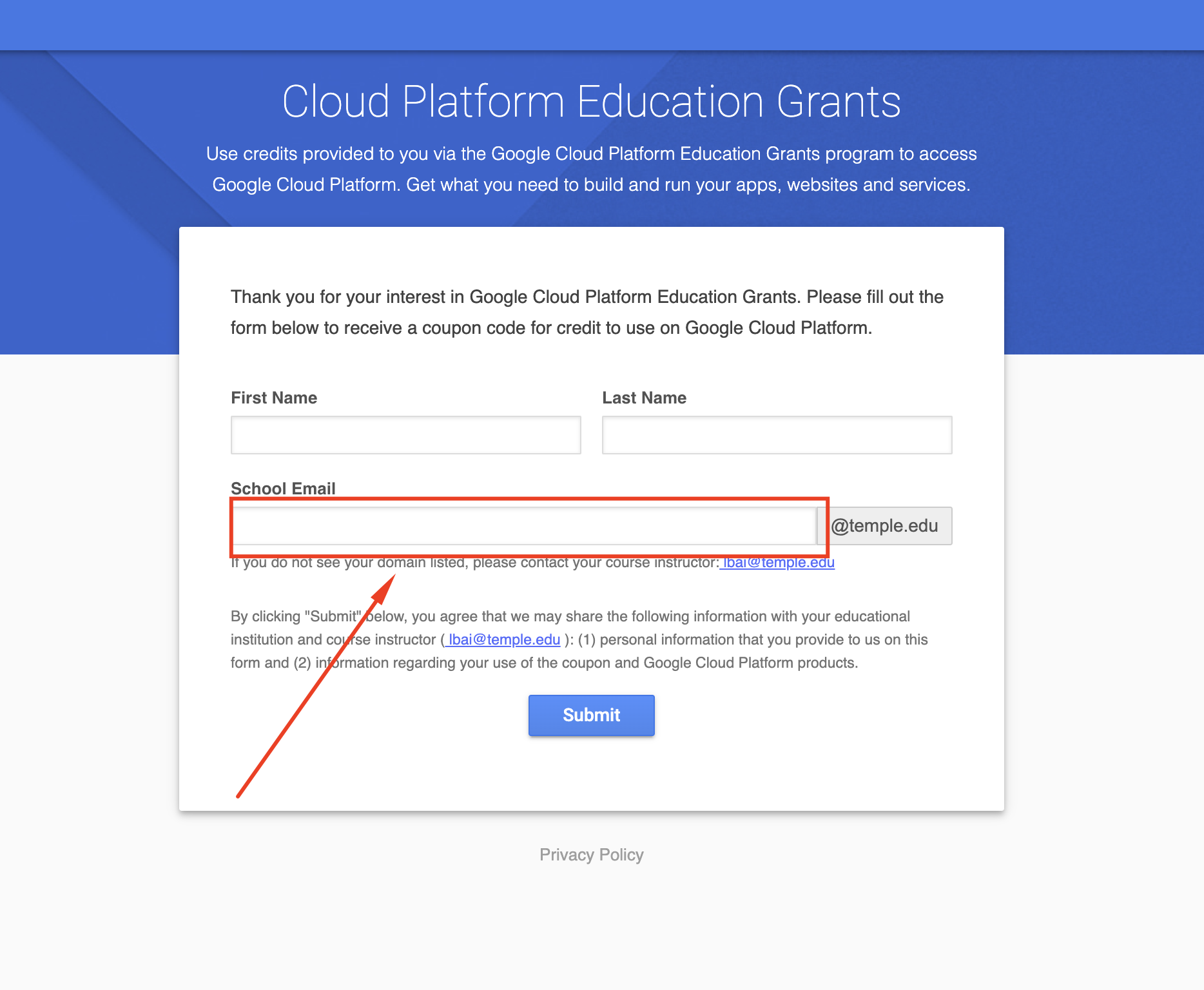
- Go to Canvas and request your Google credit using your temple.edu email address
Step 2: Check Your Email
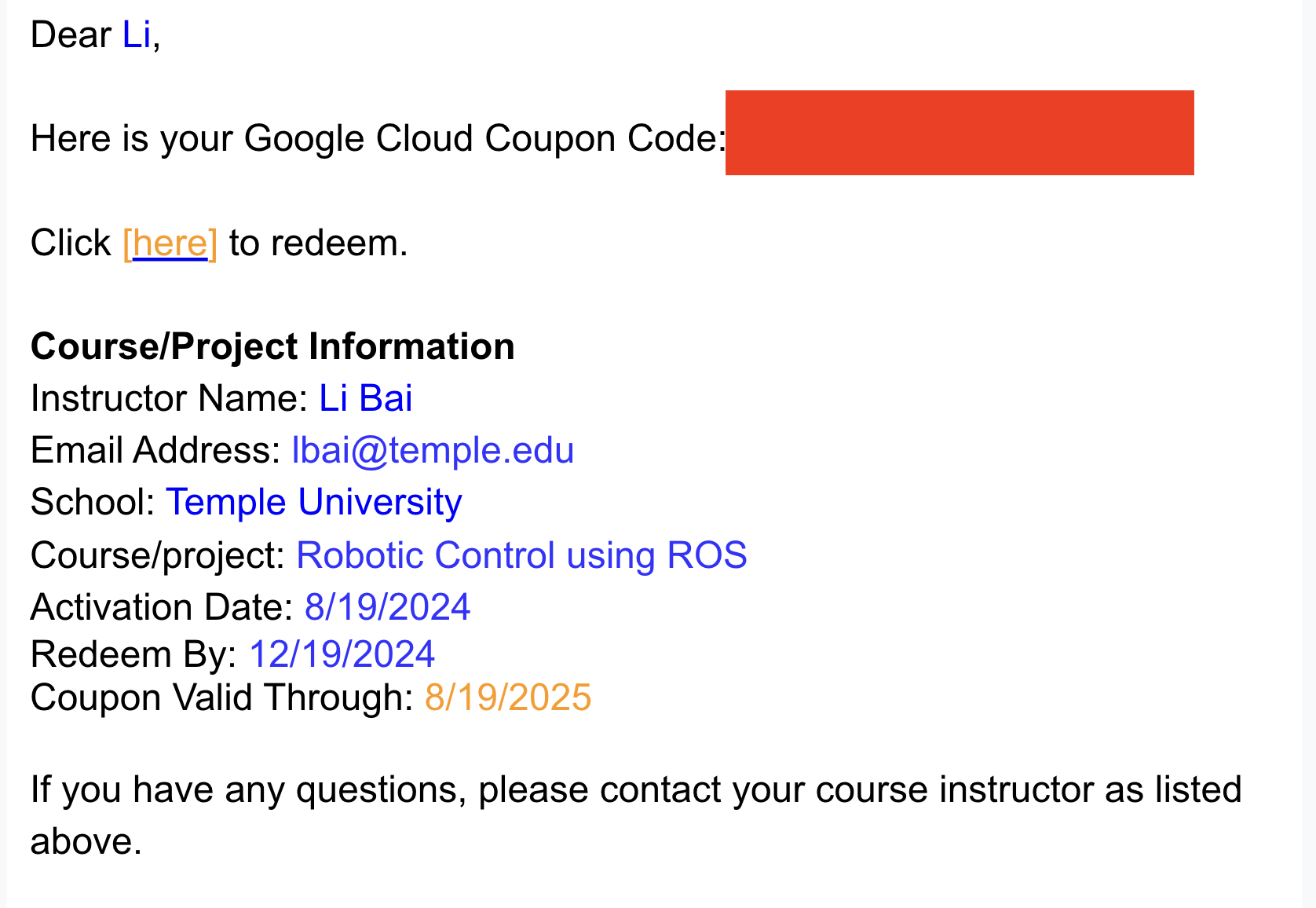
- Check your Temple email for the coupon message
- Save the coupon code
- Copy the redeem link
Part 2: Create Google Cloud Project
Step 1: Login with Personal Gmail
- Open a new Chrome tab
- Login with your personal Gmail account (not Temple email)
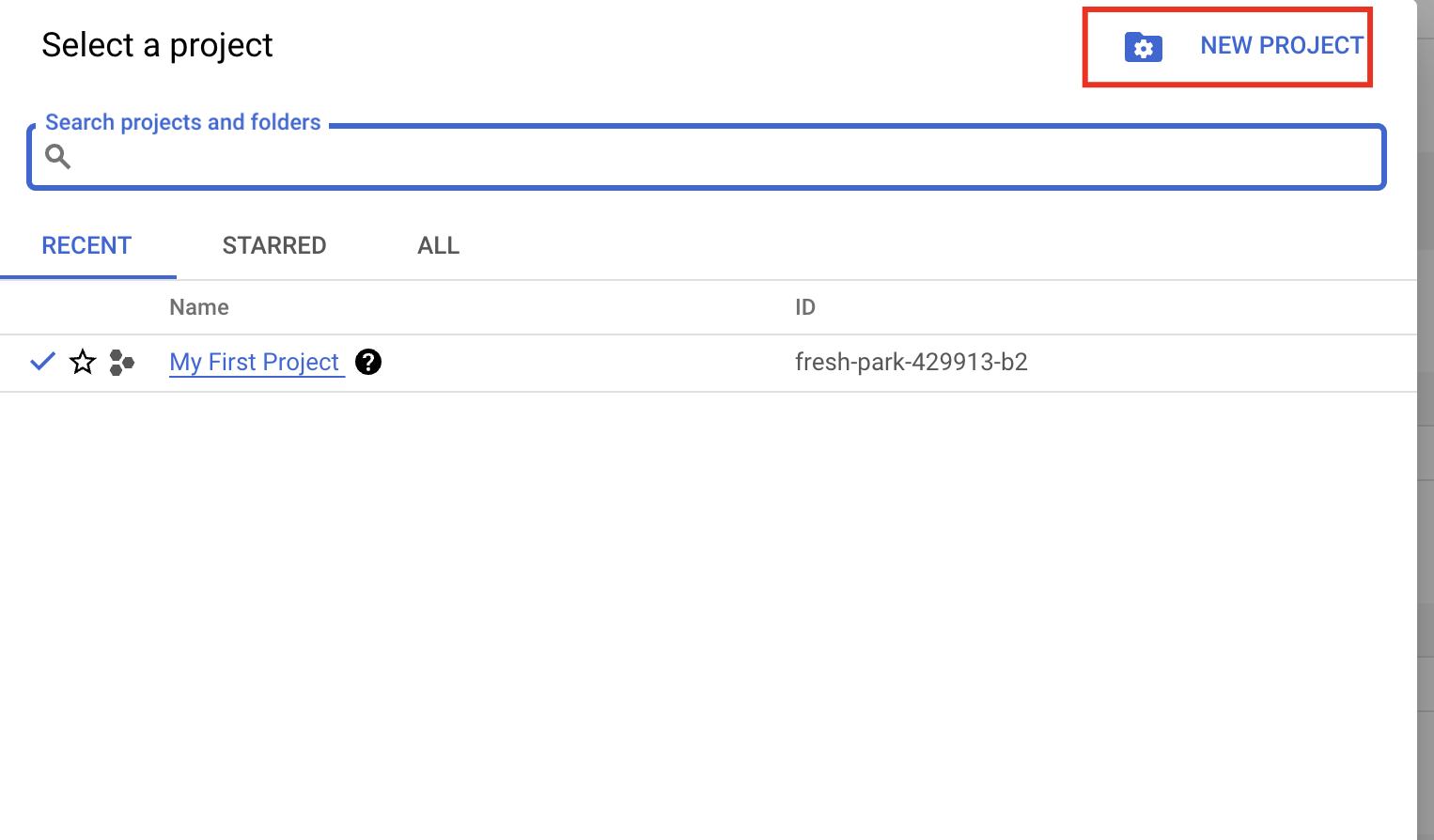
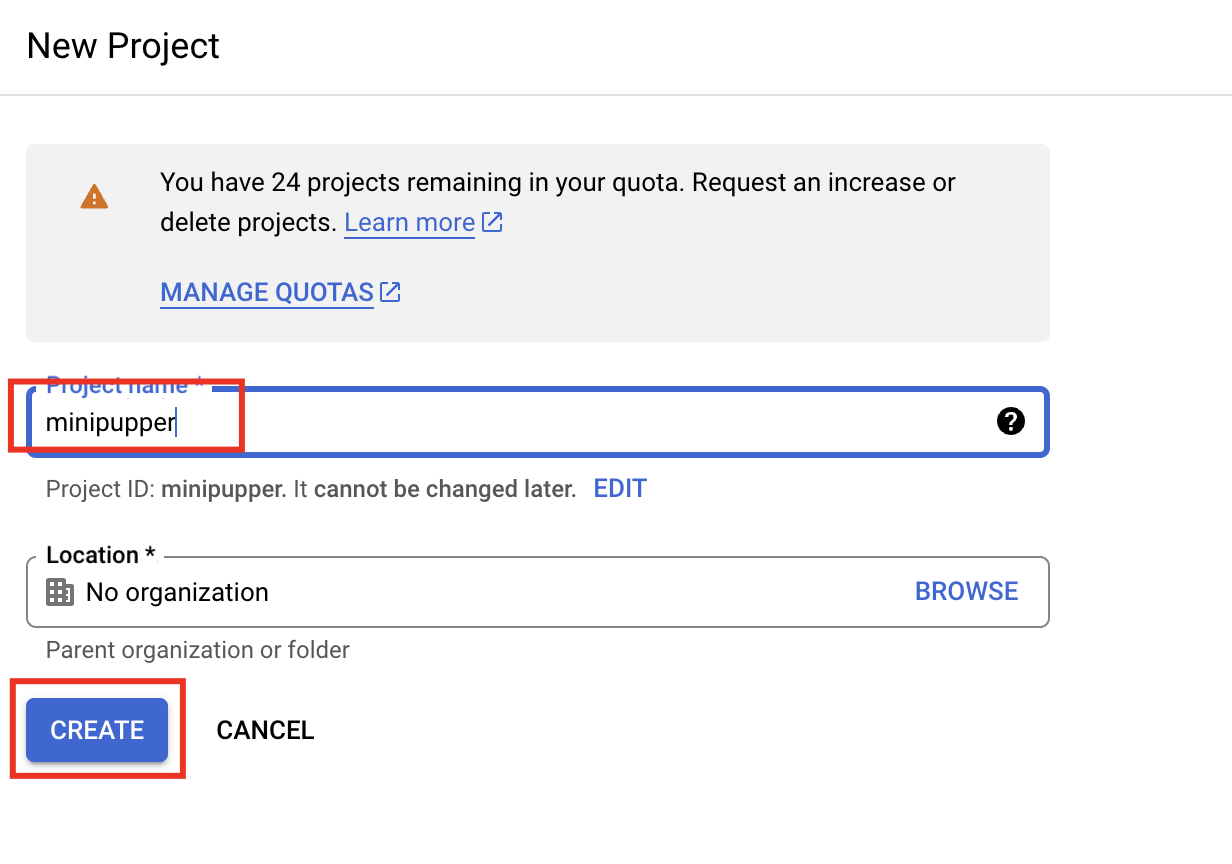
Step 2: Create New Project
Use the redeem link to create a new project:
Step 3: Redeem Credits
- Use the redeem link in a new tab
- Select your project
- Paste the coupon code
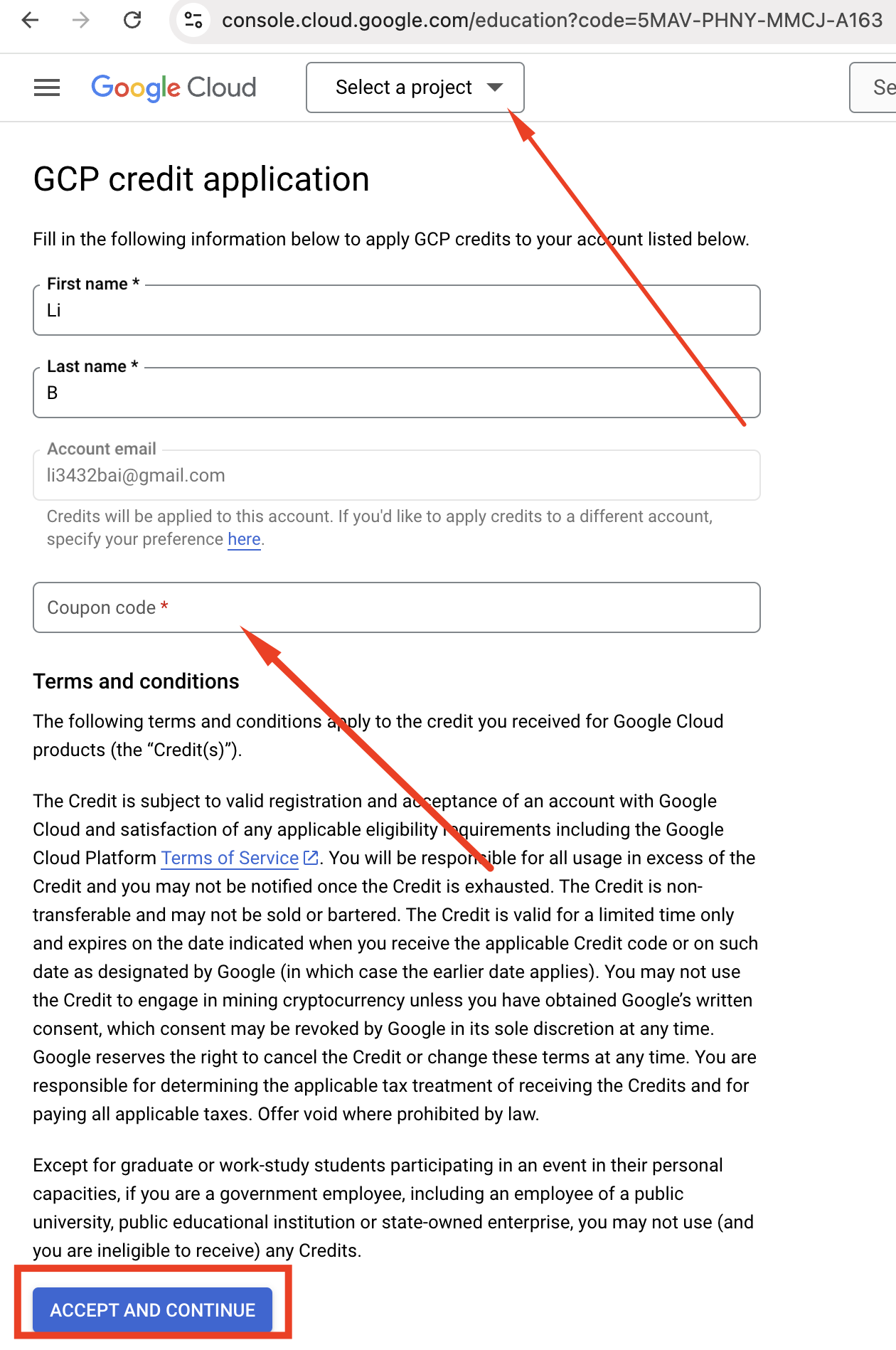
Part 3: Create Service Account
Go to Google Credentials and make sure you select your personal Gmail account.
Step 1: Create Credential
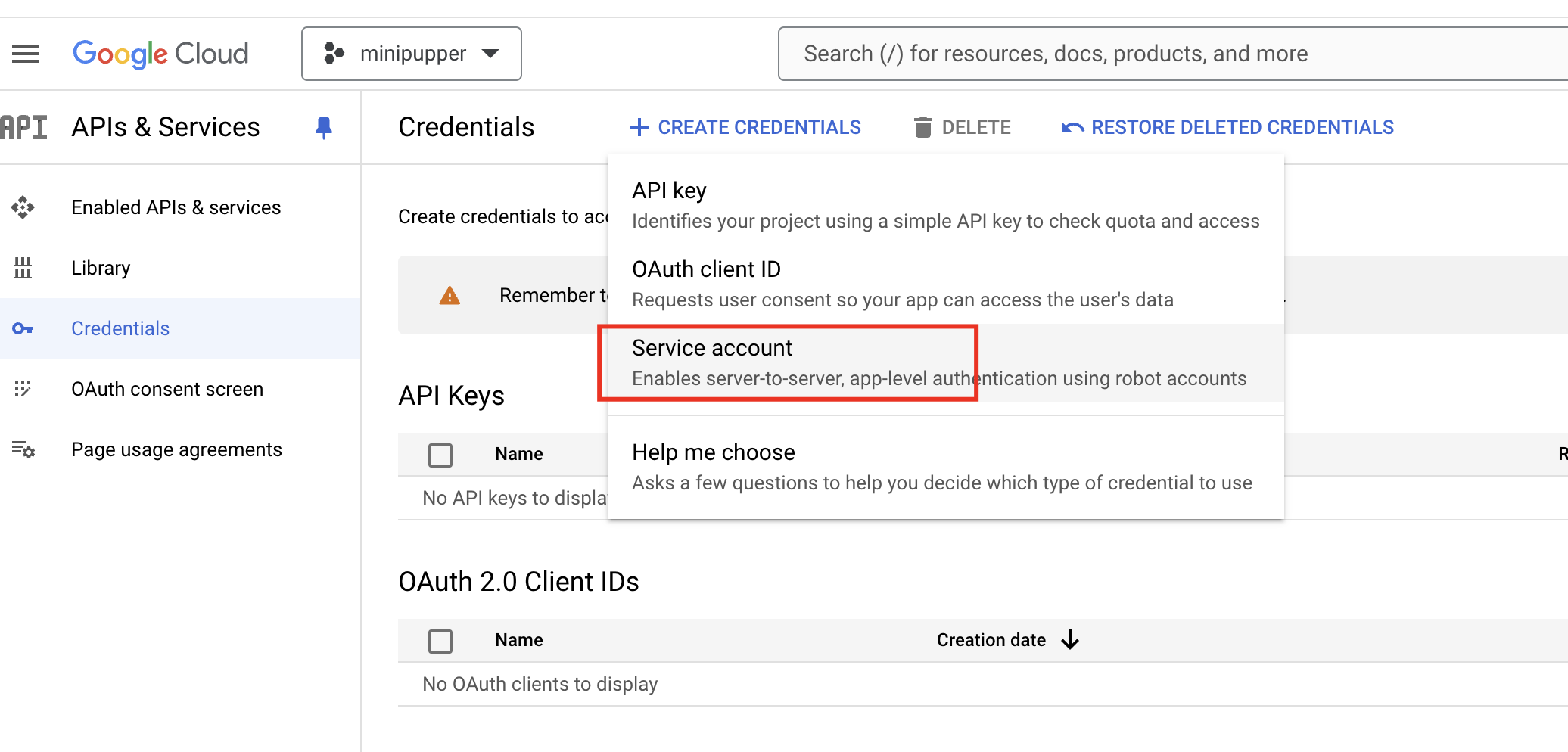
Step 2: Service Account
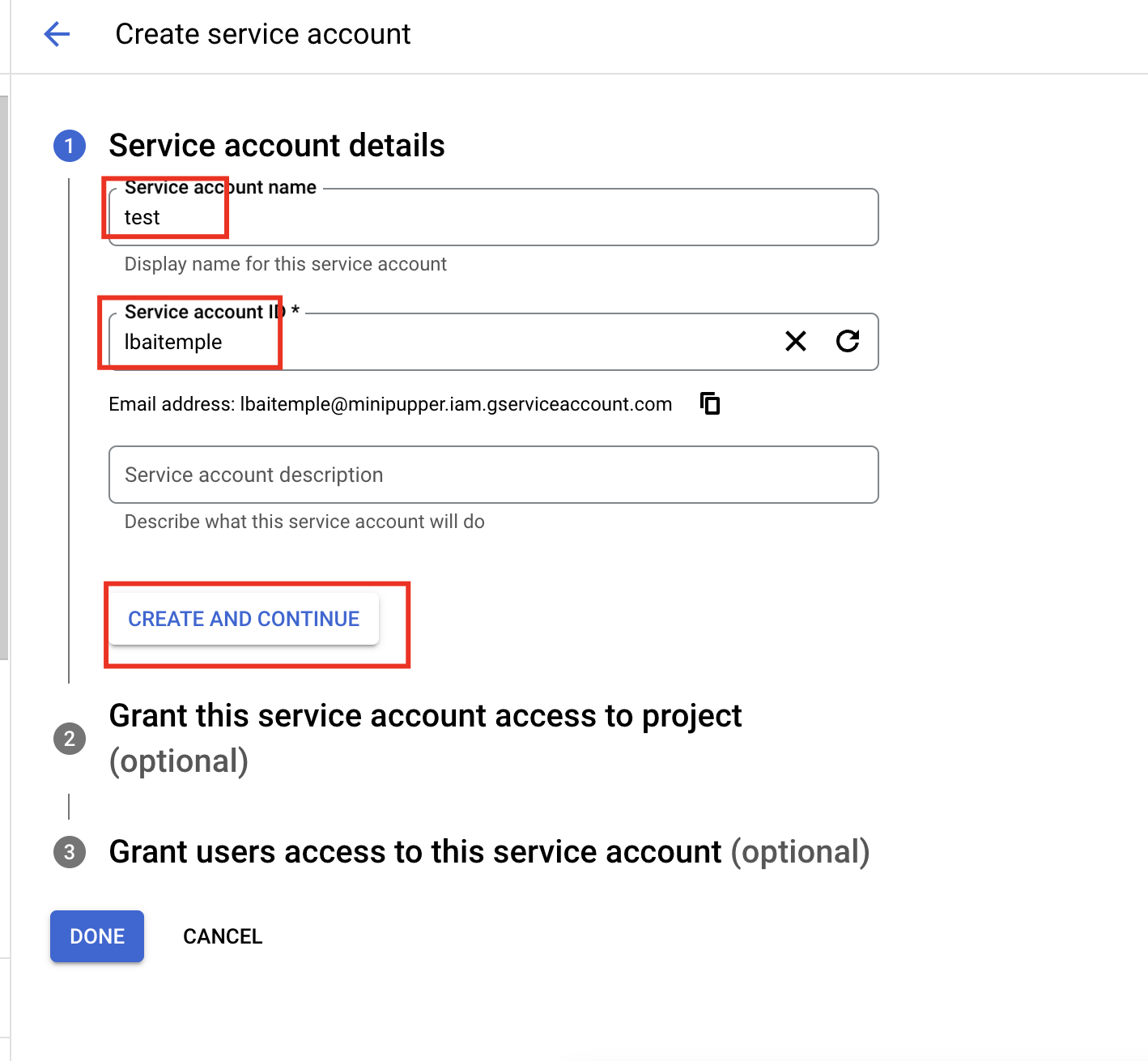
Step 3: Create Keys
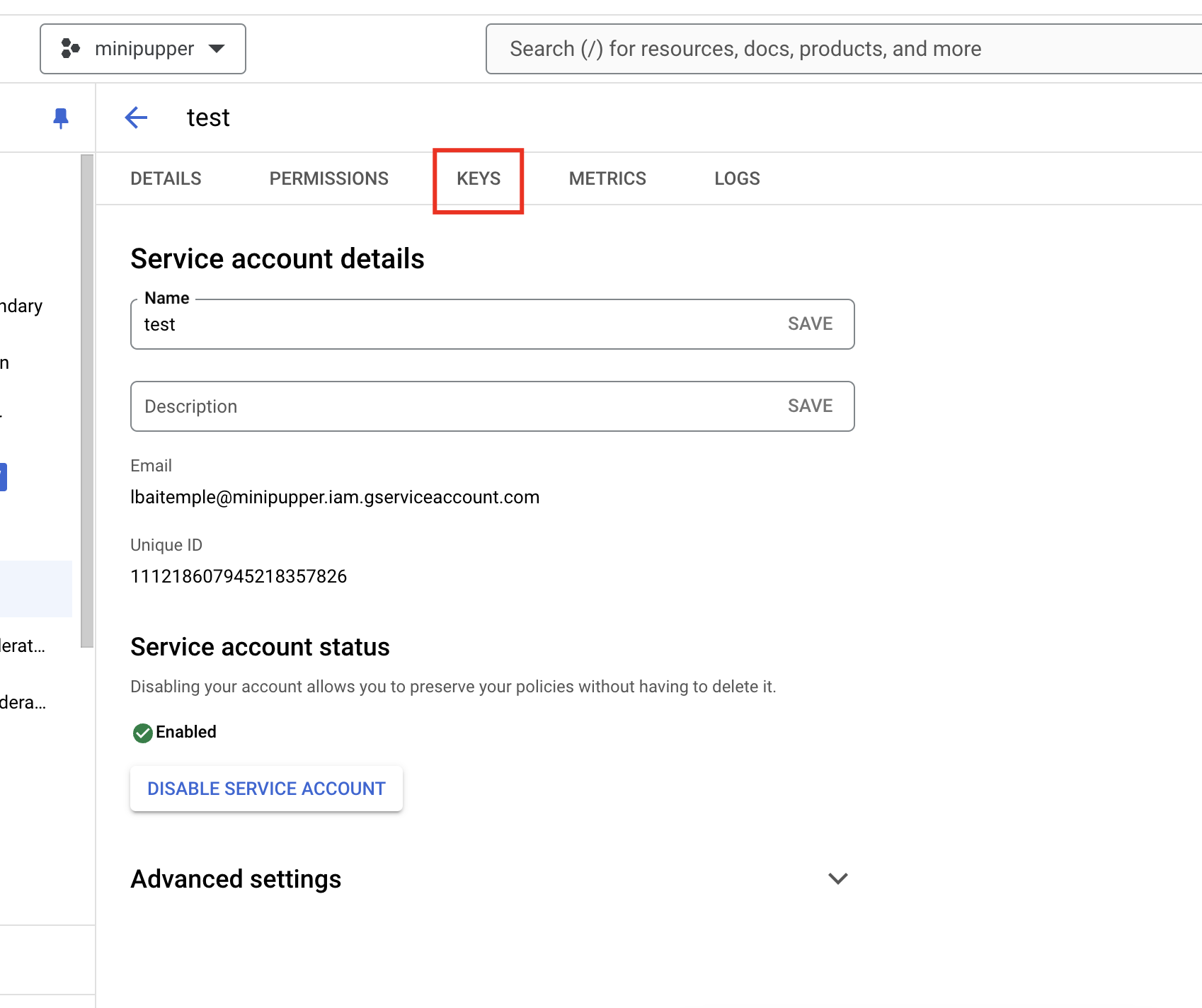
Step 4: Add Key
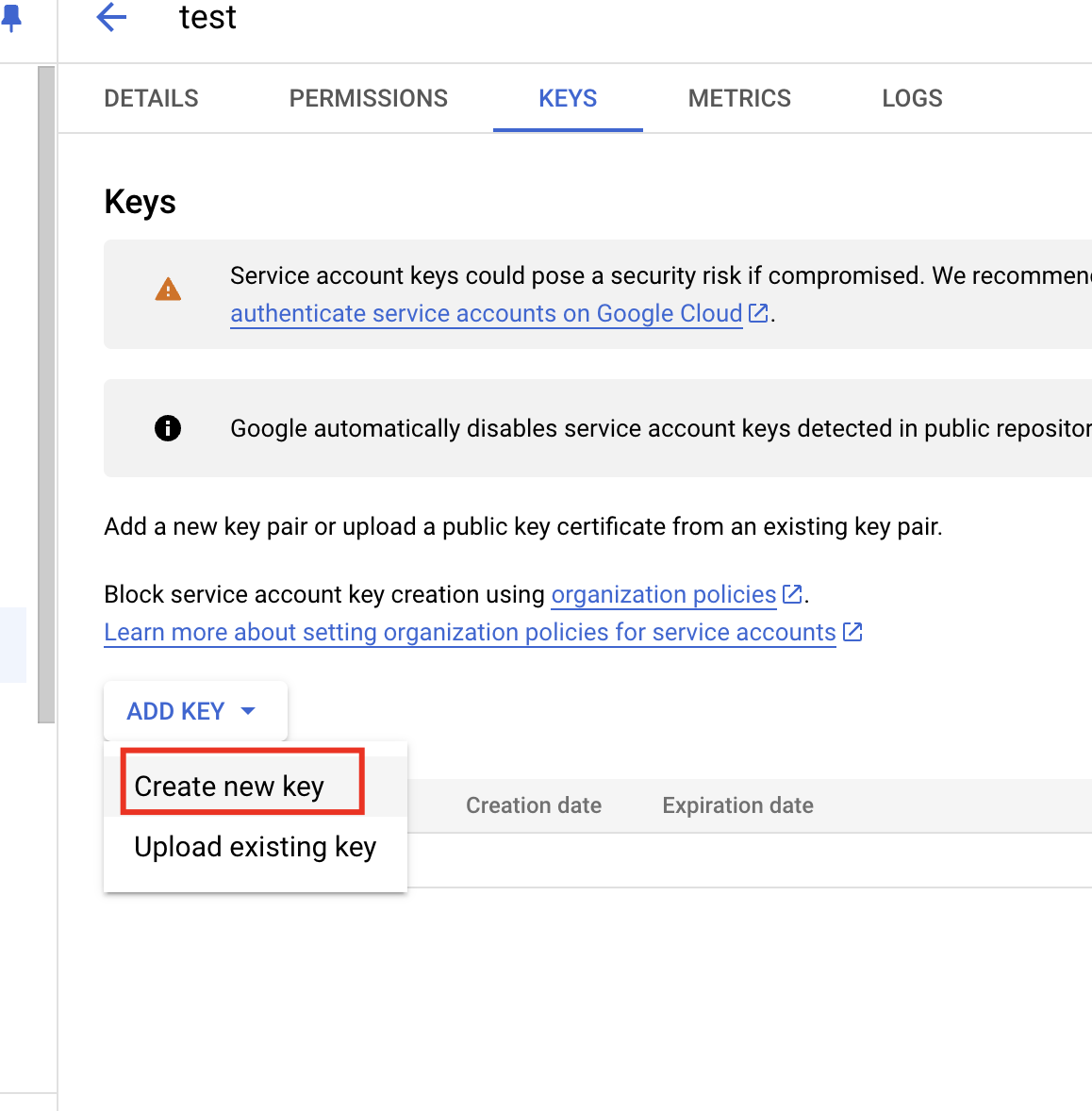
Step 5: Download JSON
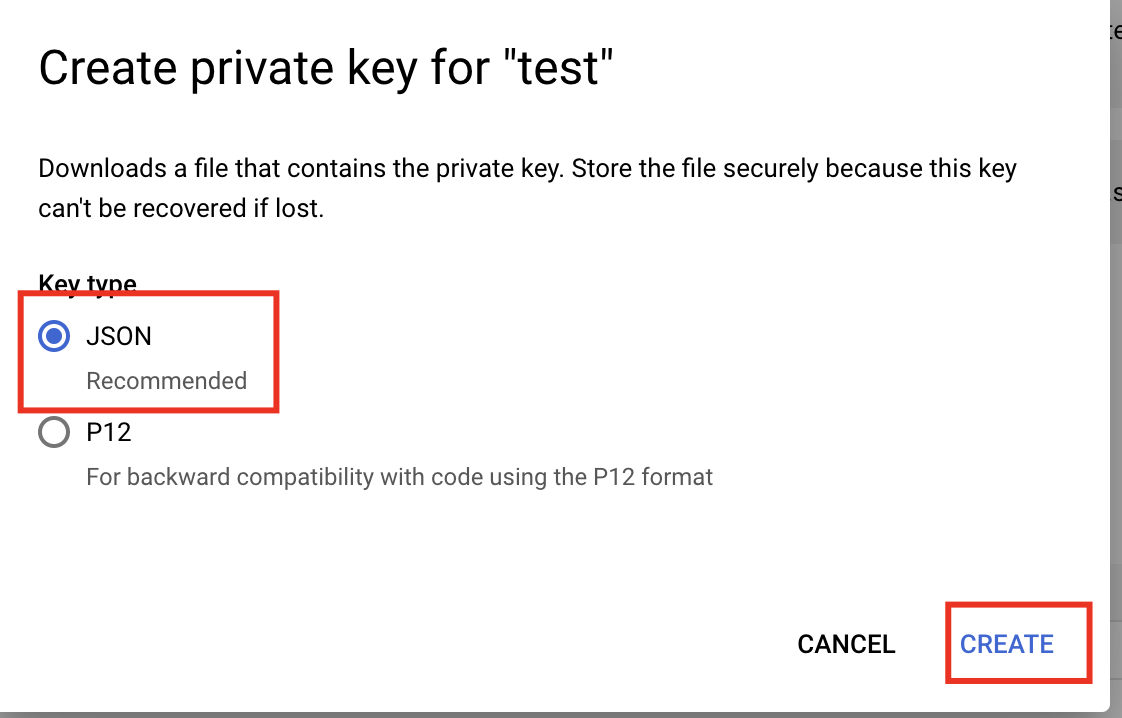
Important:
- SAVE this JSON file and keep it private!
- Rename it as
minipupper_creds.json- Upload the file to the home directory on the robot
Part 4: Enable Required APIs
You need to enable the following APIs:
- Vertex AI API
- Cloud Speech-to-Text API
- Cloud Text-to-Speech API
Step 1: Go to API/Services
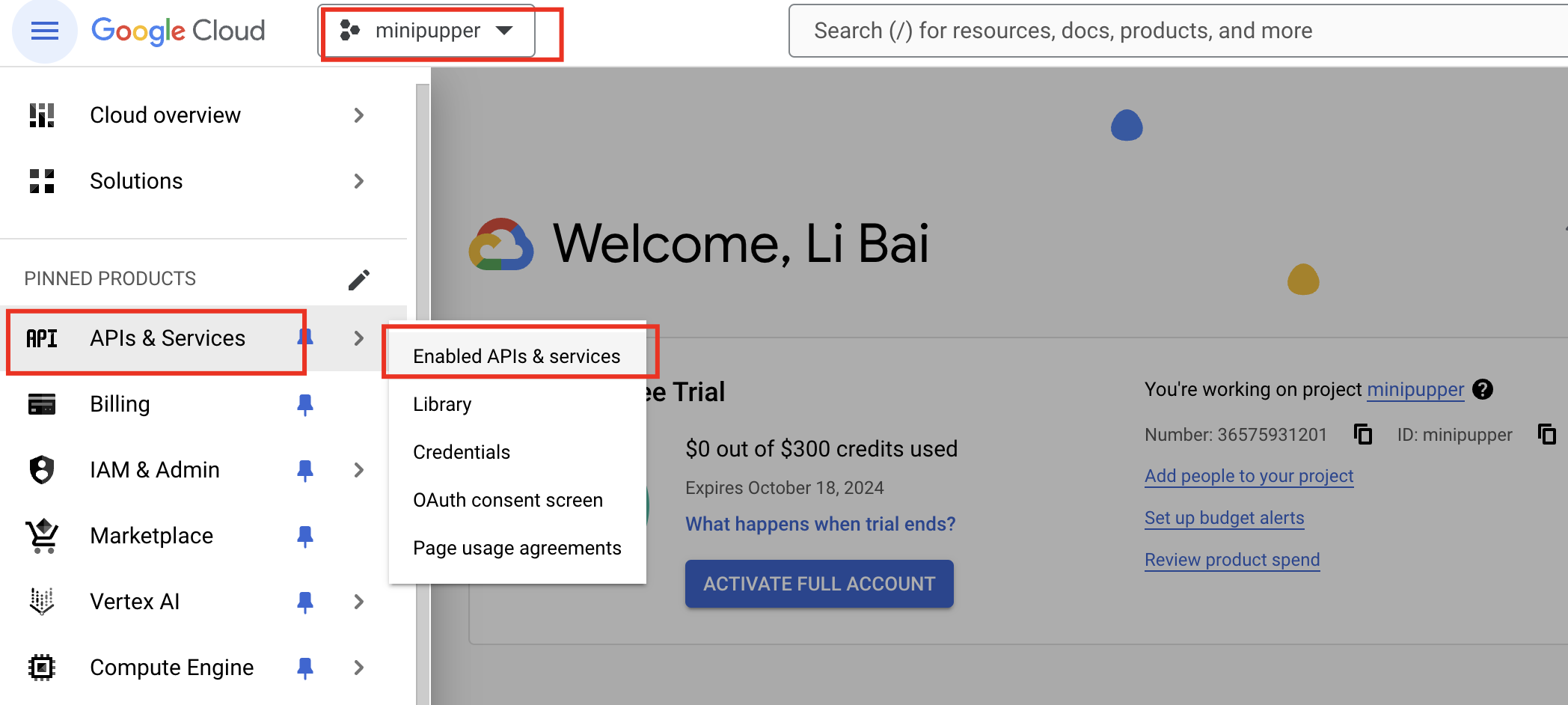
Step 2: Enable APIs
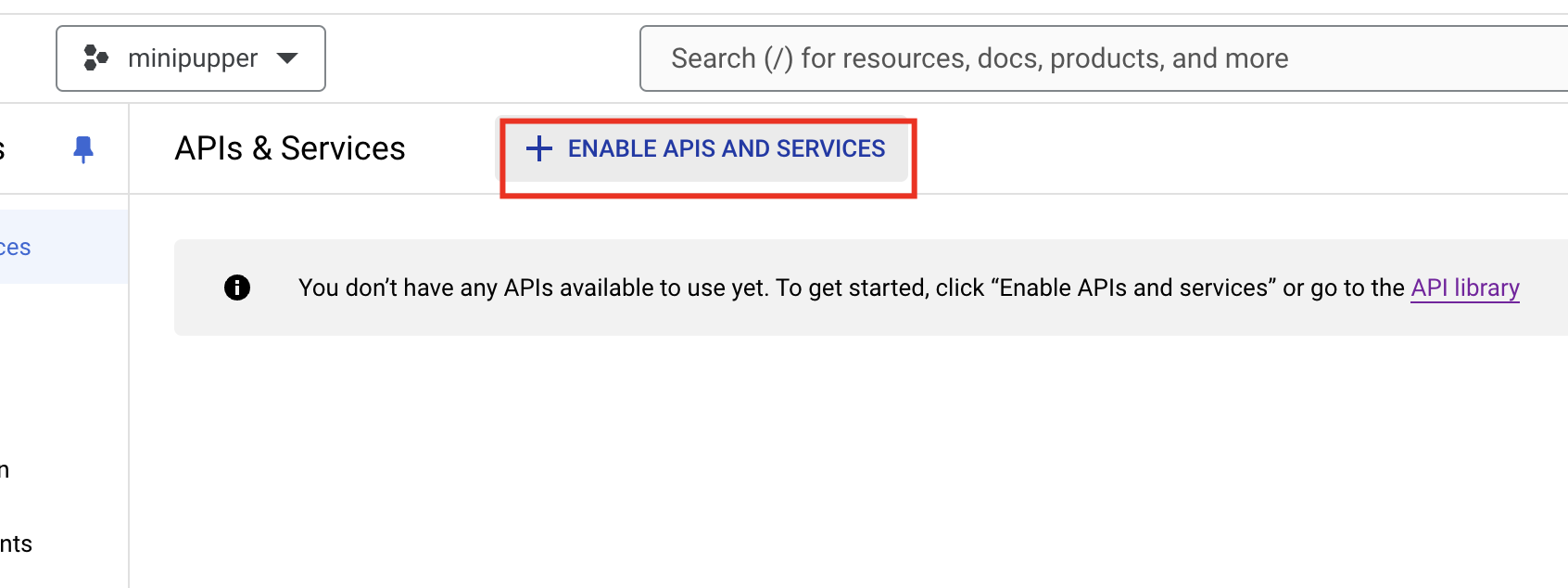
Step 3: Search for API
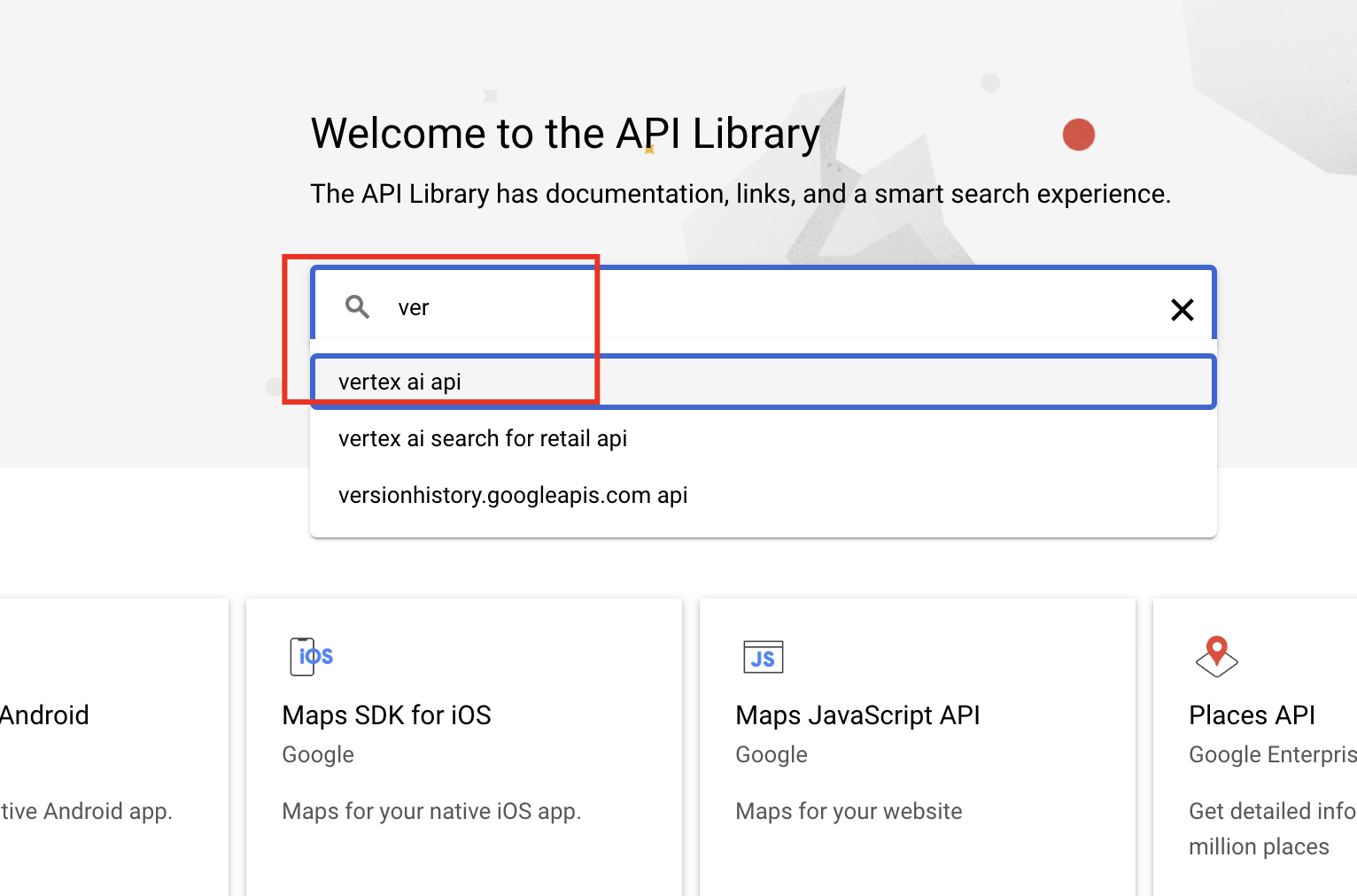
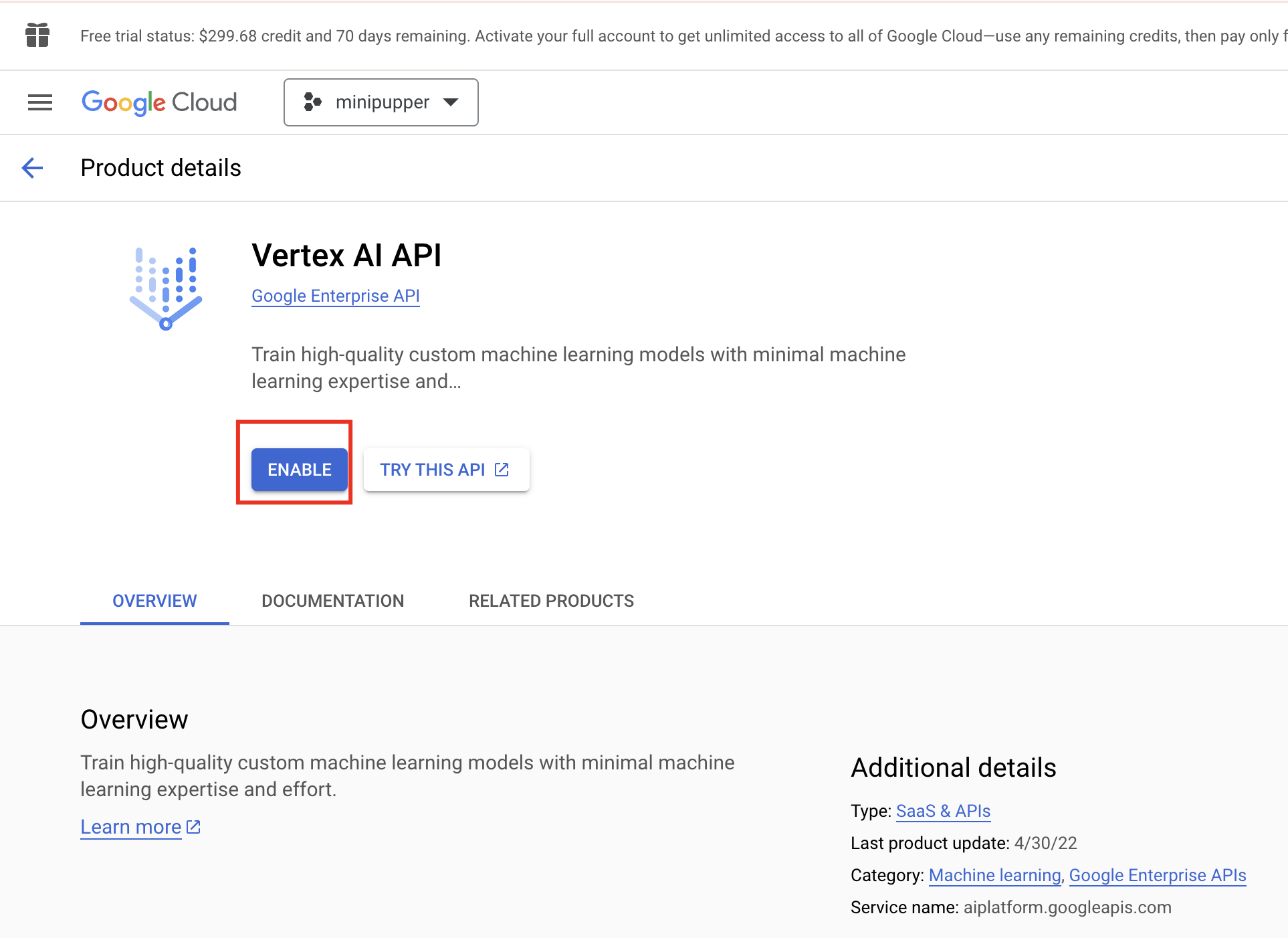
Step 4: Enable the API
Step 5: Verify Status
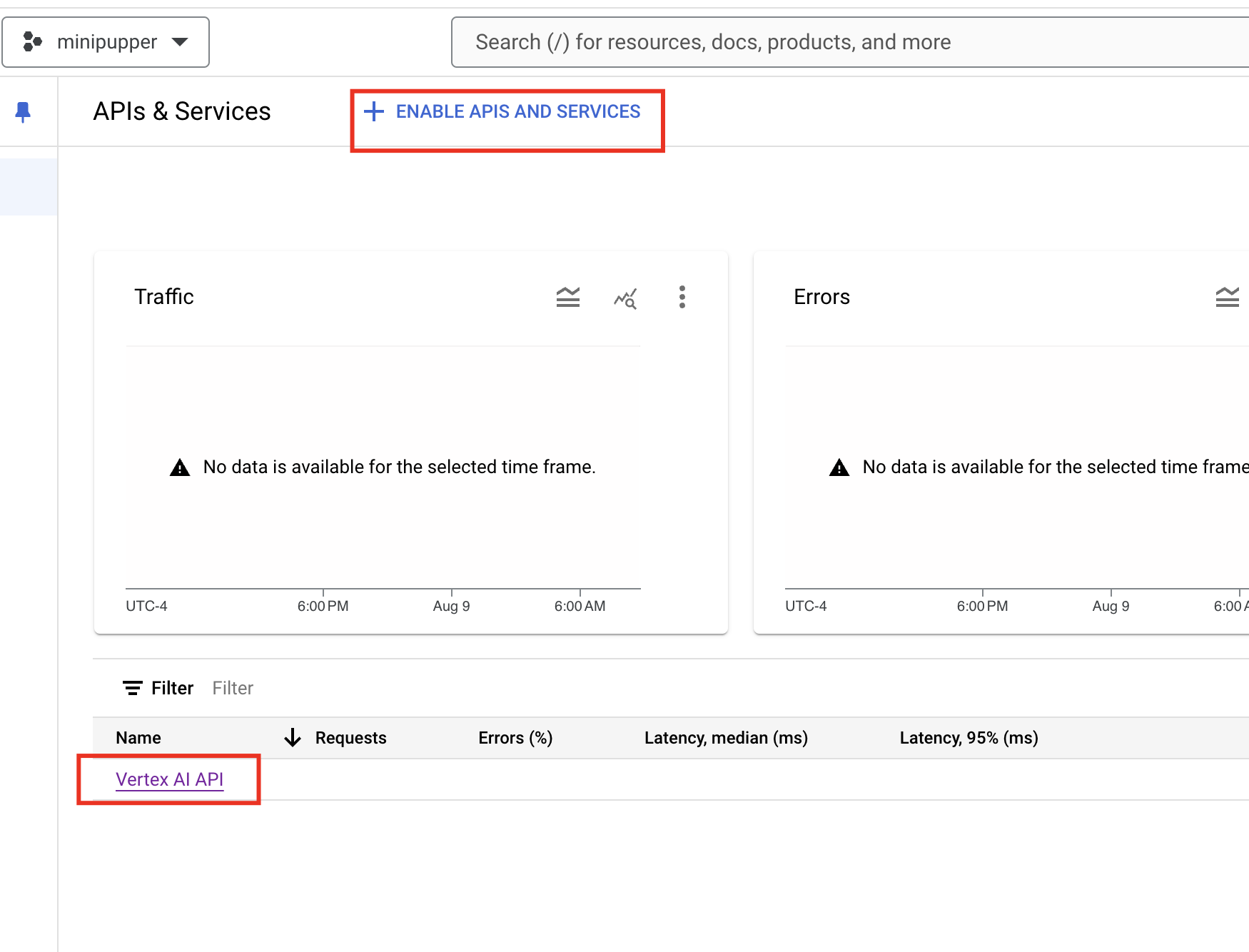
Repeat for all three APIs (Vertex AI, Speech-to-Text, Text-to-Speech).
Part 5: Check Your Credits
Go to Google Cloud Console > Billing
Step 1: Billing API
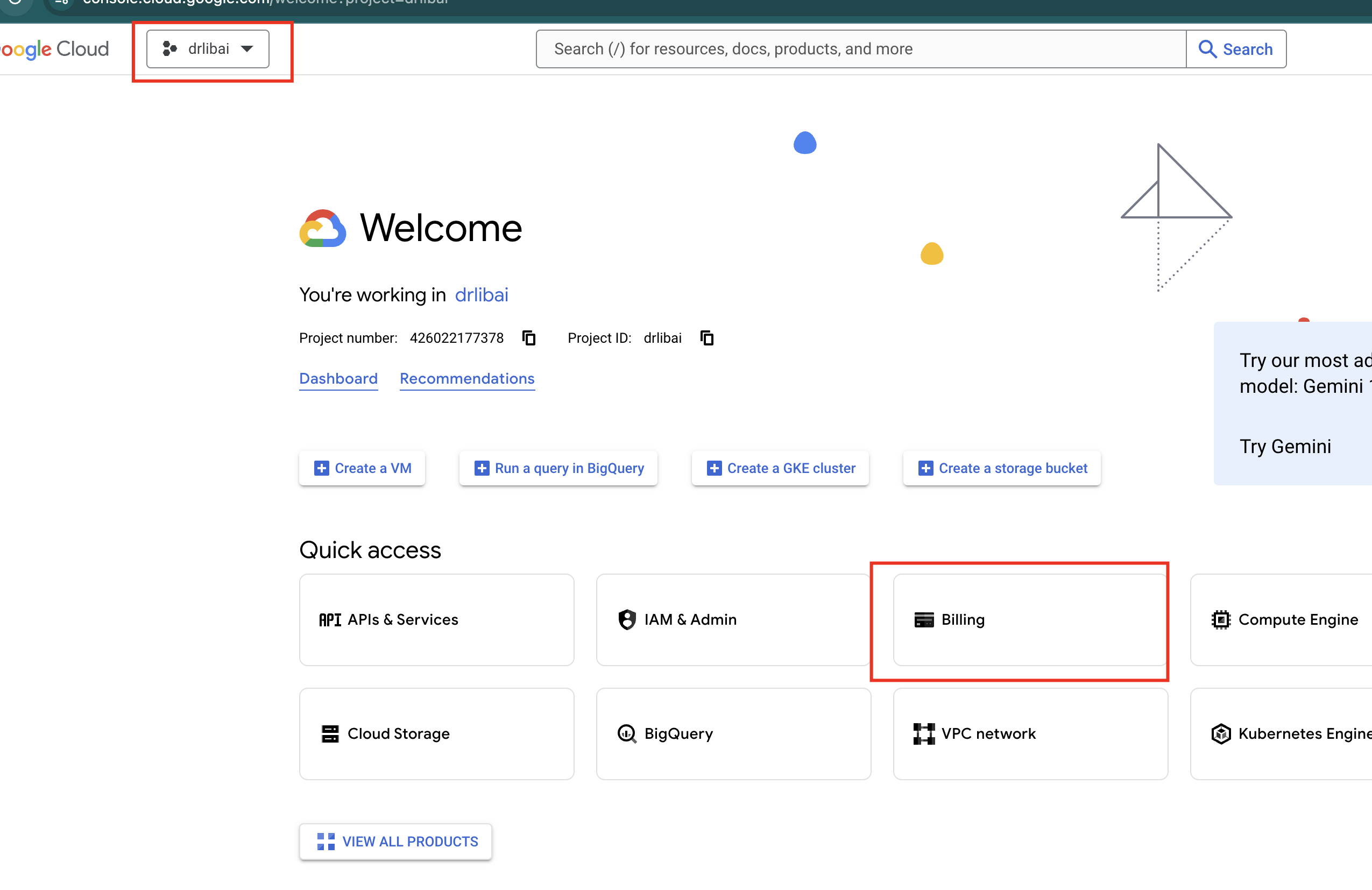
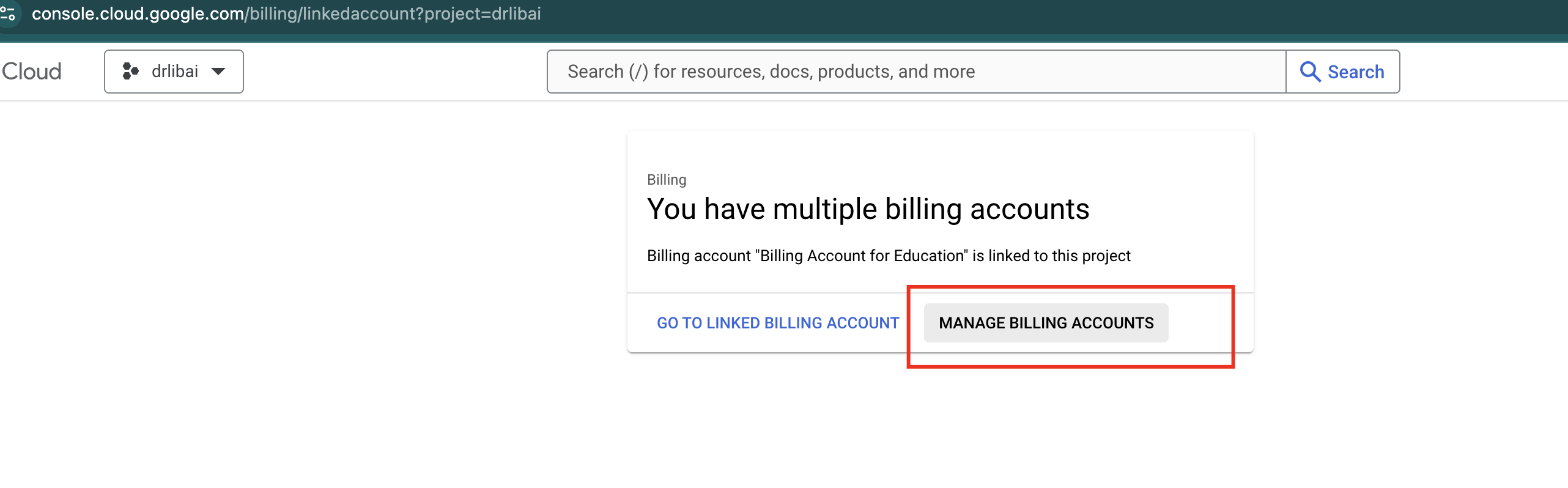
Step 2: Manage Account
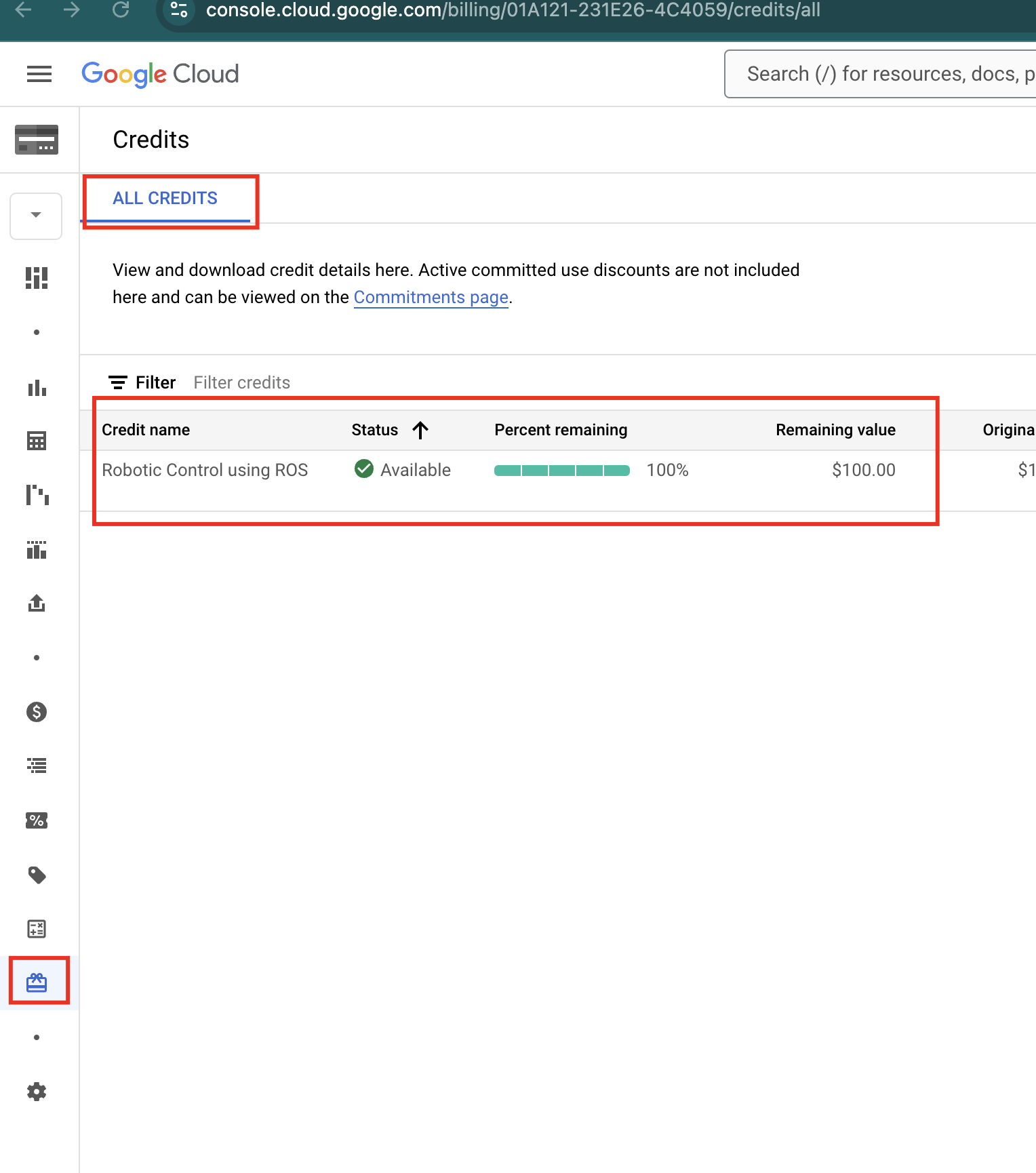
Step 3: Select Account
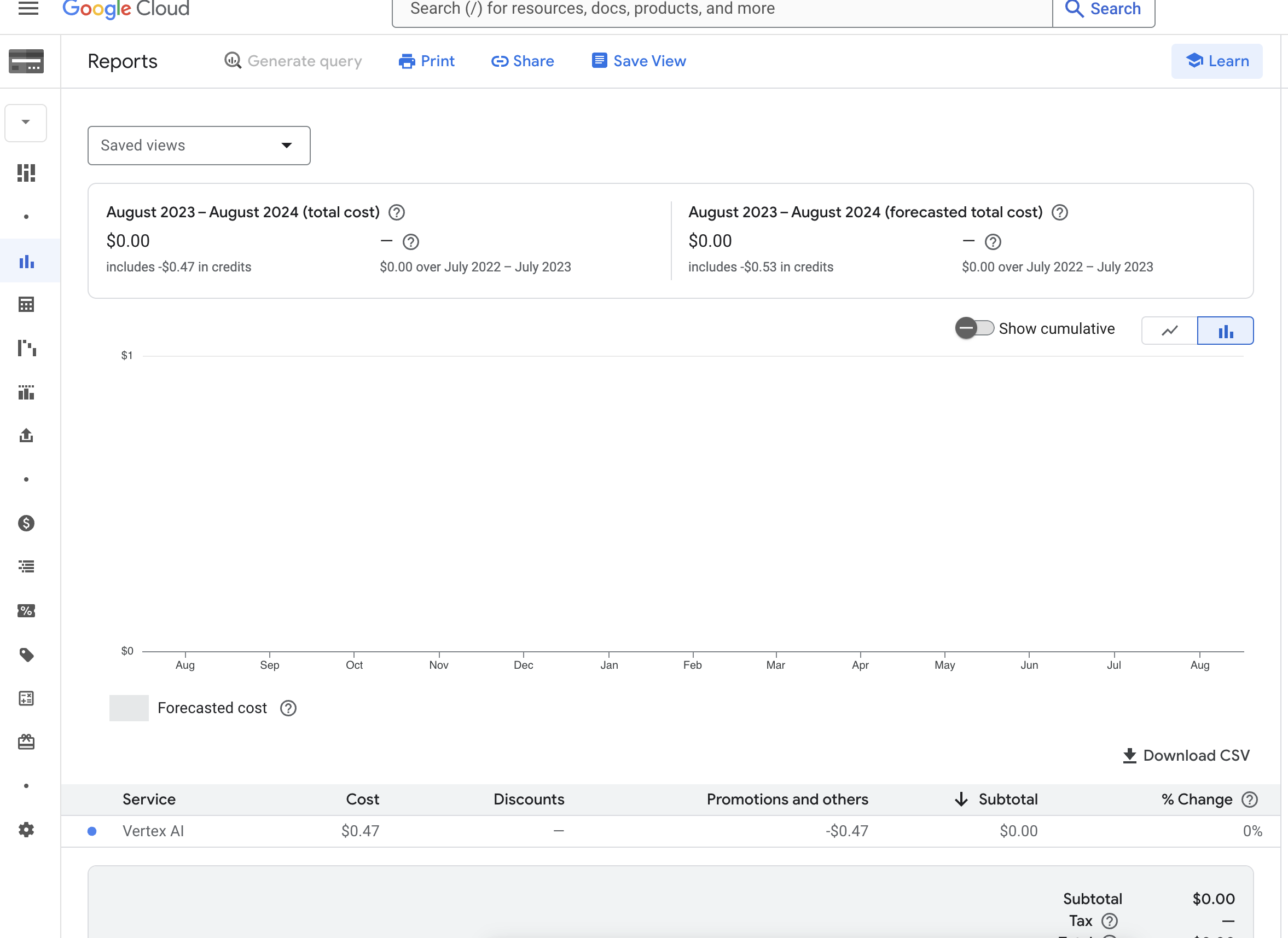
Step 4: View Cost
Part 6: Setup Credentials on Mini Pupper
Step 1: Create Credential Directory
mkdir -p ~/.gemini
Step 2: Upload and Move Credential File
Upload minipupper_creds.json to the robot, then:
cp ~/minipupper_creds.json ~/.gemini/creds.json
Step 3: Set Environment Variable
Add to your ~/.bashrc:
nano ~/.bashrc

# Add at the end:
export GOOGLE_APPLICATION_CREDENTIALS=/home/ubuntu/.gemini/creds.json

# Save and apply
source ~/.bashrc
Part 7: Install Gemini App
Step 1: Clone the Repository
cd ~
git clone https://github.com/lbaitemple/apps-md-robots
cd apps-md-robots
pip install -r requirements.txt
Step 2: Setup Environment File
cp env.sample .env
Step 3: Run the AI App
python ai_app/ai_app.py
Step 4: Reset LCD (if needed)
sudo systemctl restart robot
Part 8: Language Support
Google Cloud Text-to-Speech supports many languages:
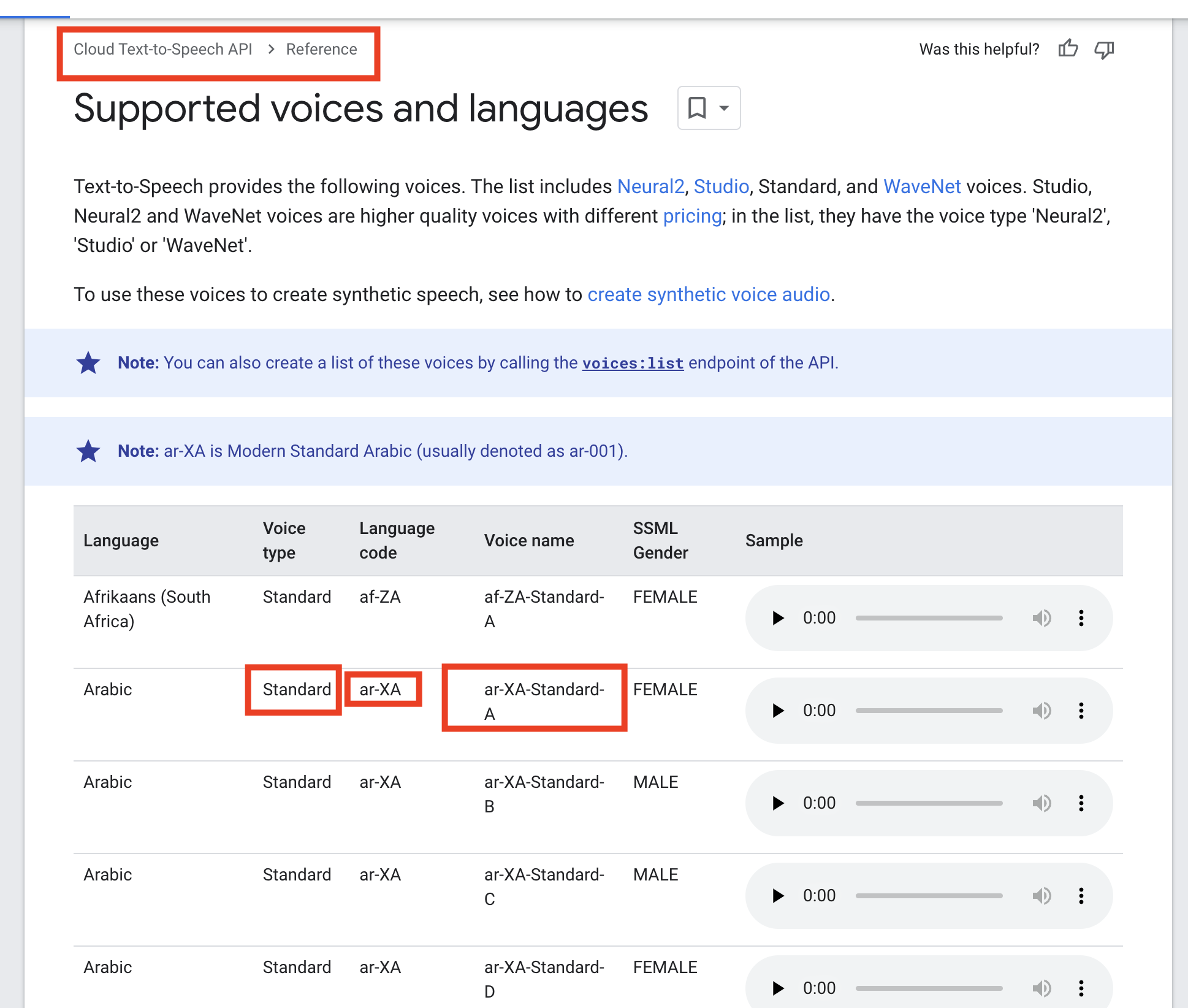
See full list at: Cloud Text-to-Speech Voices
Summary
In this lab, you learned:
- How to request and redeem Google Cloud classroom credits
- How to create a Google Cloud project
- How to create a service account and download credentials
- How to enable required APIs (Vertex AI, Speech-to-Text, Text-to-Speech)
- How to configure credentials on Mini Pupper
- How to run the Gemini AI app
- How to test Gemini Vision with food analysis