How to Use Draw.io for Block Diagrams
Getting Started with Draw.io
- Go to draw.io or open the desktop application
- Select where you want to save your diagrams (Google Drive, OneDrive, Device, etc.)
- Create a new diagram or open an existing one
Importing Libraries
To import custom shape libraries like Scratchpad.xml or ECE.xml:
- Click on File → Open Library from → Device
- Select the XML file you downloaded (e.g.,
Scratchpad.xmlorECE.xml) - The library will appear in the left sidebar under “Scratchpad” or the library name
- You can now drag and drop components from the library onto your canvas
Adding Components
- From Libraries: Drag components from the left sidebar onto the canvas
- From Shapes: Use the search bar to find standard shapes (rectangles, arrows, etc.)
- Connecting Components:
- Hover over a shape to see connection points (blue dots)
- Click and drag from one connection point to another to create arrows/lines
- Adding Text: Double-click on any shape to add or edit text
- Styling: Use the right panel to change colors, line styles, and fonts
Tips for Block Diagrams
- Use Ctrl+D (or Cmd+D on Mac) to duplicate components
- Use Ctrl+G to group multiple components together
- Right-click on a connector to change arrow styles
- Use the Arrange menu to align and distribute shapes evenly
Exercise: Draw Block Diagrams
Practice creating block diagrams by recreating the following two diagrams:
1. Finite State Machine (FSM) Diagram
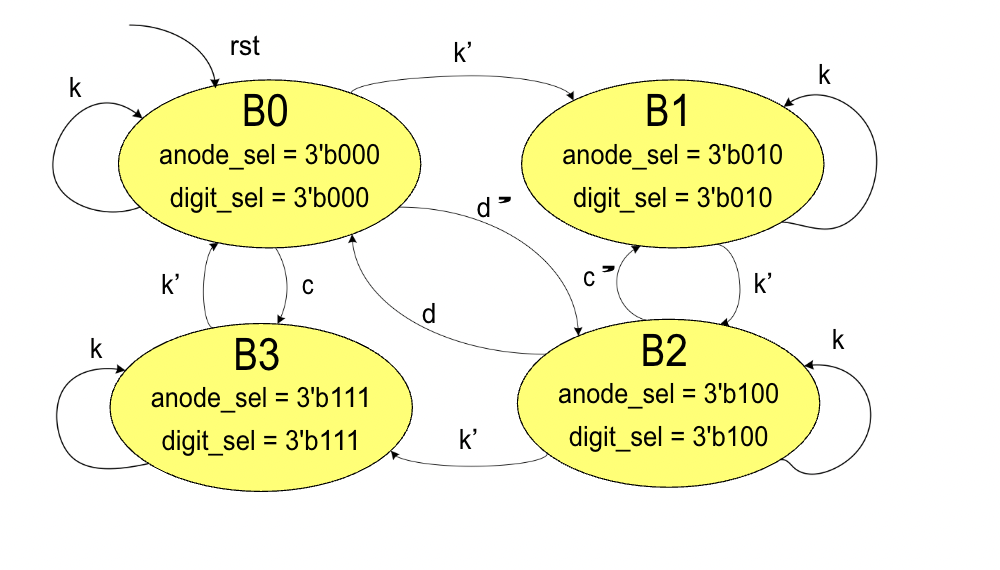
Figure: Finite State Machine block diagram
Recreate this FSM block diagram using draw.io. Pay attention to:
- State circles/boxes
- Transition arrows with labels
- Input/output notation
2. IR Remote Block Diagram
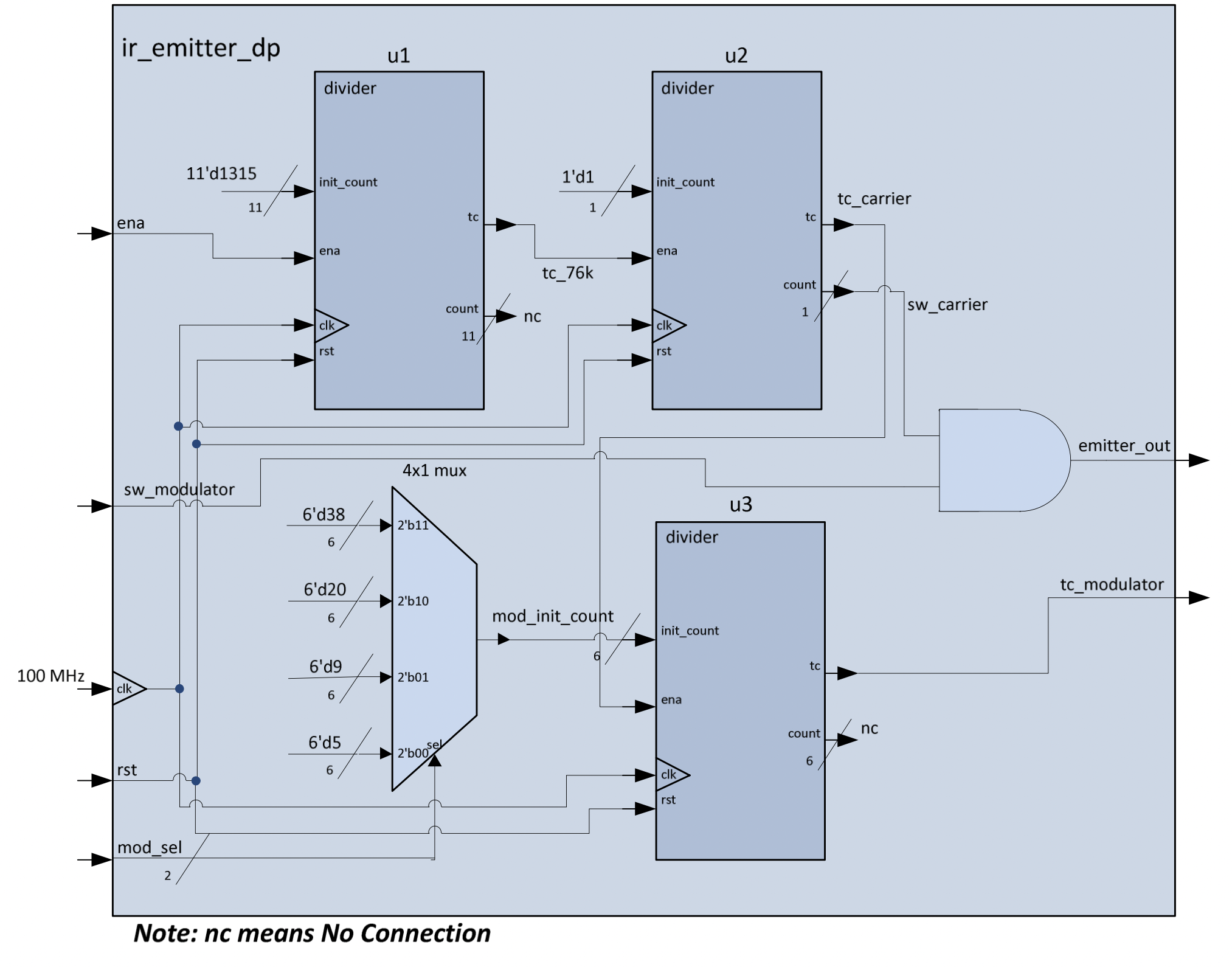
Figure: IR Remote control block diagram
Recreate this IR remote control block diagram. Focus on:
- Component blocks and their connections
- Signal flow direction
- Proper labeling of each component